Tasks and reminders
Open in SeekrCreate tasks, assign them to colleagues, get reminders and see them in Outlook.
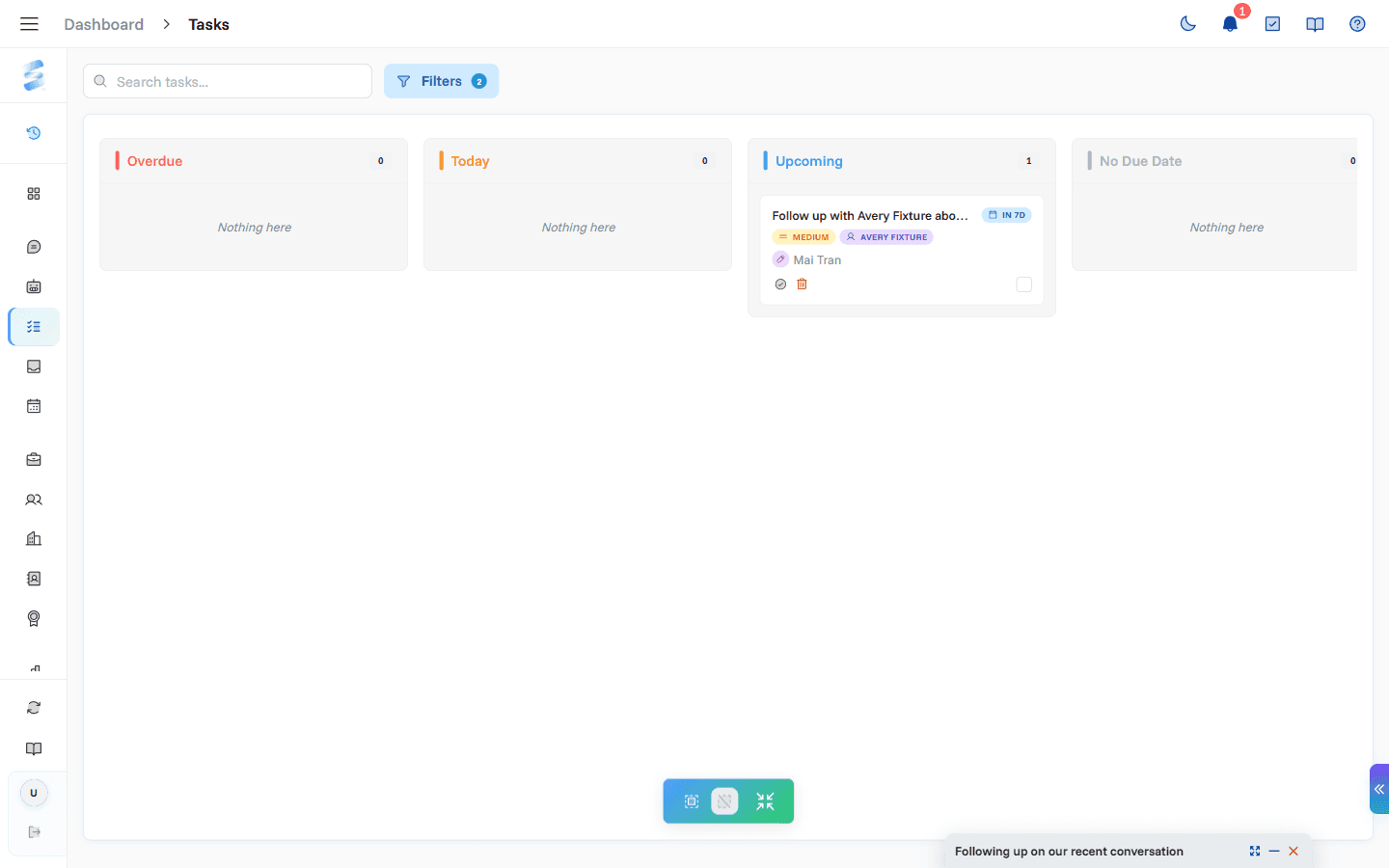
The Tasks board shows every task you are working on, sorted by when it is due, so you can see at a glance what needs doing today.
Open your tasks#
- Click Tasks in the left menu. Your tasks appear on a board with five columns: Overdue, Today, Upcoming, No Due Date and Done.
- Type in Search tasks... to find a task by its text.
- Click Filters to narrow the board. Under Scope, turn on Assigned to me, Created by me, or both. Leave both off to see every task in your workspace.
- Under Sort within column, choose Priority or Due Date.
Create a task#
You can create a task from the Tasks page, or from a candidate's or contact's page.
From the Tasks page
- Click Add, then under Task choose Manual Entry. The Create Task drawer opens.
- Optionally pick a record in the search box at the top (Search a candidate, contact or lead (optional)). Leave it empty to make a task that is not linked to anything.
- Continue with the steps below. The new task appears on the board at once, and you are the assignee unless you pick someone else.
A task with no link can be linked to a candidate, contact or lead later, by opening it and picking a record. A link can be set once; after that it cannot be changed or removed.
From a candidate or contact
- Open the candidate or contact.
- Open the actions menu and choose Create Task. The Create Task drawer opens.
Fill in the task
- Enter a Task Title.
- In Assign To, pick one or more colleagues (up to 10). The first person you pick is the main assignee.
- Choose a Due Date. It starts at the next half hour.
- Set the Priority (High, Medium or Low) and the Type (General, Client Meeting or Candidate Meeting).
- Write a Description of up to 2,000 characters.
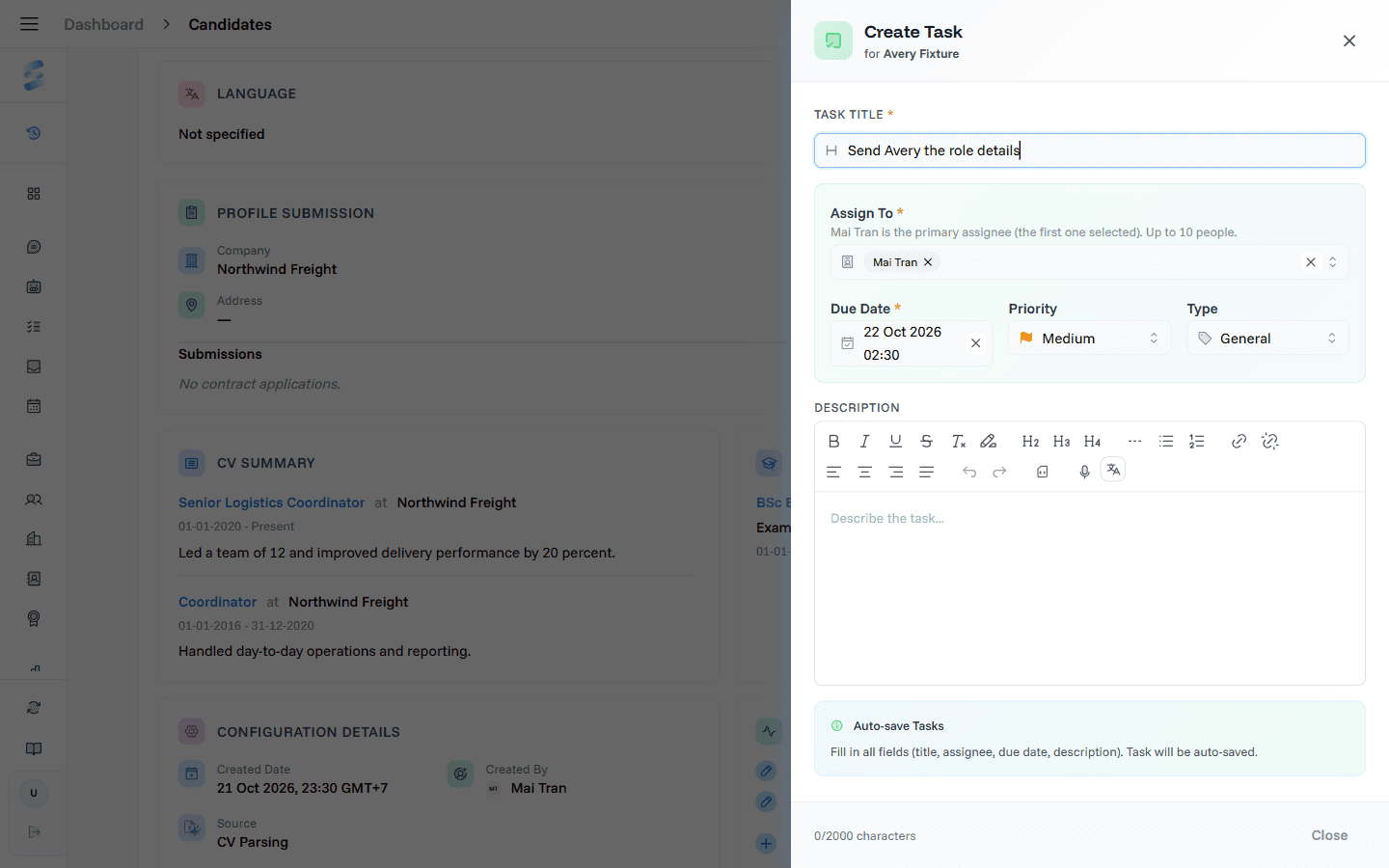
The drawer saves as you type. Watch the Saving... and Saved badges at the top; there is no Save button.
You can only assign a task to colleagues in your own workspace, and link it to records of your own workspace.
Complete, edit or delete a task#
- Click a card on the board to open it in the Edit Task drawer and change any field.
- To finish a task, click Mark complete on the card, or turn on the Completed switch in the drawer. A note drawer then opens so you can record what happened.
- To bring a finished task back, click Reopen task.
- To delete a task, click Delete task on the card and then Click again to confirm, or click Delete in the drawer. The message that follows has an Undo button if you change your mind.
Get reminders#
You do not need to set reminders by hand. Everyone assigned to a task, and the person who created it, gets an email about 30 minutes before the task is due. Seekr also emails assignees when a task is created, changed, completed, cancelled or restored.
See your tasks in Outlook#
When your workspace has Outlook connected, each task creates an event in Outlook with every assignee invited. The event moves when the task changes and is cancelled when the task is completed or deleted.
To also keep a personal copy of tasks assigned to you in your own Outlook calendar:
- Open Settings, then Preferences.
- In Calendar Sharing, turn on Copy Assigned Tasks to My Calendar.
This applies to new tasks and later changes only, not to tasks you already have.
Dictate a task#
- In the task drawer, click the microphone in the Description toolbar (Speak to type).
- Speak in English or Thai. Click Stop recording and transcribe when you finish, or Discard recording to start again.
- Seekr writes the text into the description and tidies it into paragraphs and bullet points.