Add a candidate
Open in SeekrCreate candidates from their CVs, by hand, with a public link, or capture them from LinkedIn.
You add candidates to Seekr from their CVs, which AI reads for you, by typing their details yourself, by sharing a link they fill in, or straight from a LinkedIn profile with the Seekr extension.
Start a new candidate#
- Open Candidates from the main menu.
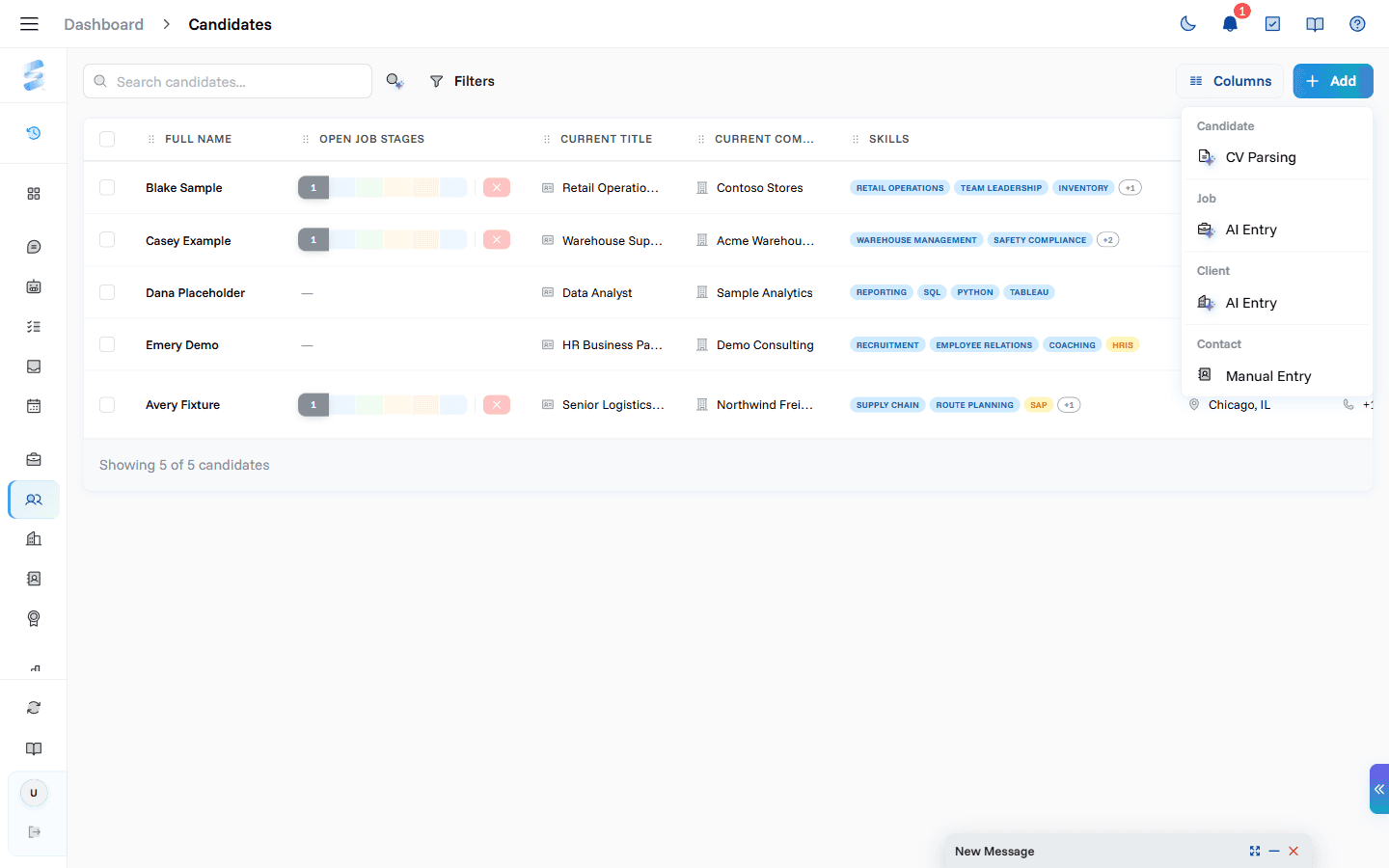
- Click Add in the top right.
- Under Candidate, choose how to add:
- CV Parsing opens the Add Candidates from CVs window (the steps below).
- Manual Entry lets you type one candidate in yourself.
- Public Link creates a link for candidates to fill in.
Create a candidate from a CV#
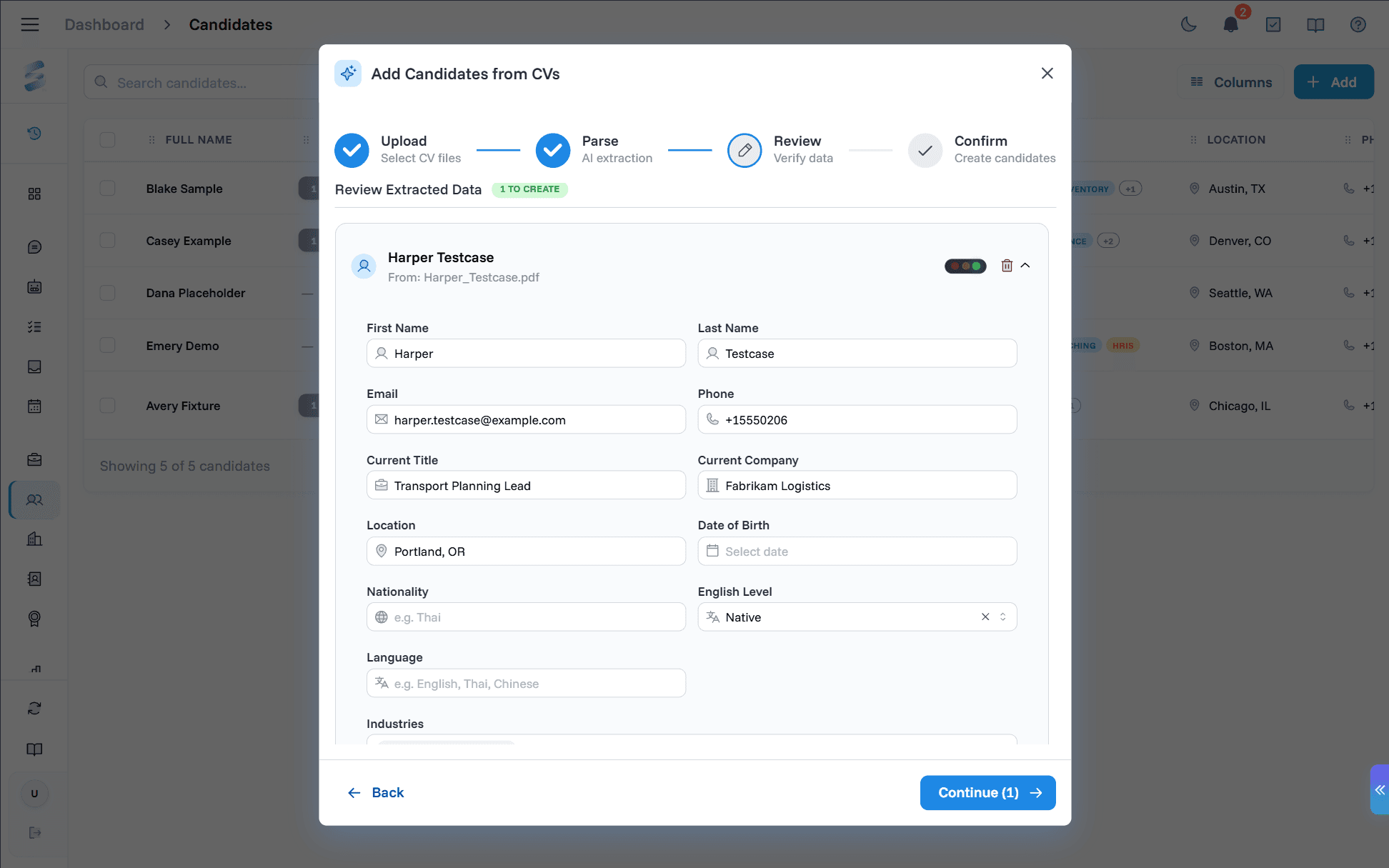
The window walks you through four steps: Upload, Parse, Review and Confirm.
- Upload. Drag CVs into the window or click to select them. You can add PDF and Word (.doc, .docx) files, up to 10 files or 8 MB in total per batch. Click Next.
- Parse. Optionally type Additional Instructions to guide the AI, such as "focus on cloud certifications". Click Parse with AI. AI reads each CV and pulls out the name, contact details, current role, skills, languages and more.
- Review. Check each candidate and correct anything the AI got wrong. You can also pick a job under Assign to Job (Optional) to add the candidate to that job's pipeline straight away.
- Confirm. Check the totals (New Candidates, To Update, To Skip, With Errors) and click Process Candidate(s).
When the candidate may already exist#
Seekr compares every CV with your existing candidates by email, phone, LinkedIn profile and name. When it finds a likely match, the review step asks you to choose:
- Update the existing candidate with the new CV,
- Skip this CV, or
- Create a new candidate anyway.
A file that does not look like a CV is flagged in the review step and skipped.
Add a CV to a candidate who has none#
- Open the candidate and select the Resume tab.
- Click Attach CV and drop in a PDF or Word file.
- Leave Parse CV and update profile fields on if you want AI to fill in the profile from the CV.
- Click Attach CV.
Type a candidate in yourself#
- Click Add, then Manual Entry under Candidate. The Add Candidate window opens.
- Fill in First Name, Last Name and Email. They are required.
- Add Phone, LinkedIn URL, Current Title, Current Company and Location if you have them.
- Optionally choose a CV File (PDF, DOC or DOCX, up to 8 MB). AI reads the CV to fill the fields you left empty; what you typed is kept. Reading can take about a minute.
- Click Create Candidate.
If a candidate with the same LinkedIn profile already exists, Seekr says so and creates nothing. If the candidate is created but the CV cannot be attached, you see a message and the candidate stays.
Let candidates fill in their own details#
A public link lets people outside Seekr send you their details and CV. One link serves many candidates.
- Click Add, then Public Link under Candidate.
- Under the Links tab, enter a Label for your own reference (for example "Career fair, March"), a Candidate limit (1 to 200) and Open for (days) (1 to 90), then click Create Link.
- Copy the link and share it. Candidates open it without signing in and fill in their first name, last name and email, plus phone, LinkedIn, current title, location and a CV if they want to.
The Links tab shows each link with how many candidates were approved out of its limit, how many are waiting, when it expires and its state. Click Copy link to copy it again, or Turn off to close it; people who open a closed, full or expired link are told it is closed.
Review the submissions#
Nobody becomes a candidate until you approve them. Open Submissions (N) on the Candidates page, or the Submissions tab of the Public Link window.
- Approve creates the candidate, with you as the creator and consultant, and attaches the CV. AI then reads the CV to fill the empty fields. Each approval uses one place on the link's limit.
- Reject deletes the person's answers and CV. Tick several rows and click Reject selected to reject them together.
- Already in Seekr appears when the LinkedIn profile matches an existing candidate. It links to that candidate and offers only Reject. A matching email or phone only shows a warning, and you can still approve.
- If the candidate was created but the CV could not be attached, the row shows CV not attached with Retry and Skip. They appear a few minutes after the approval, so a CV that is still being attached is not skipped.
Capture a candidate from LinkedIn#
With the Seekr extension installed in your browser:
- Open the person's LinkedIn profile and open the extension's side panel.
- Click Capture this profile.
- Choose Candidate, check the details and click Save candidate.
The candidate's Resume tab shows a LinkedIn snapshot until you add their real CV with Replace with real CV.
See Install the Chrome extension to set it up.