Stages
Open in SeekrSet the pipeline stages for permanent jobs, contract jobs and clients, and the Rejected stage.
Stages are the columns a candidate moves through on a job, and the steps a client moves through. You set them once for the whole workspace.
Before you start#
Admins only. The Stages page sits under Workspace Layout in Settings, which only admins see.
Open Stages#
- Click Settings in the main menu.
- Under Workspace Layout, click Stages.
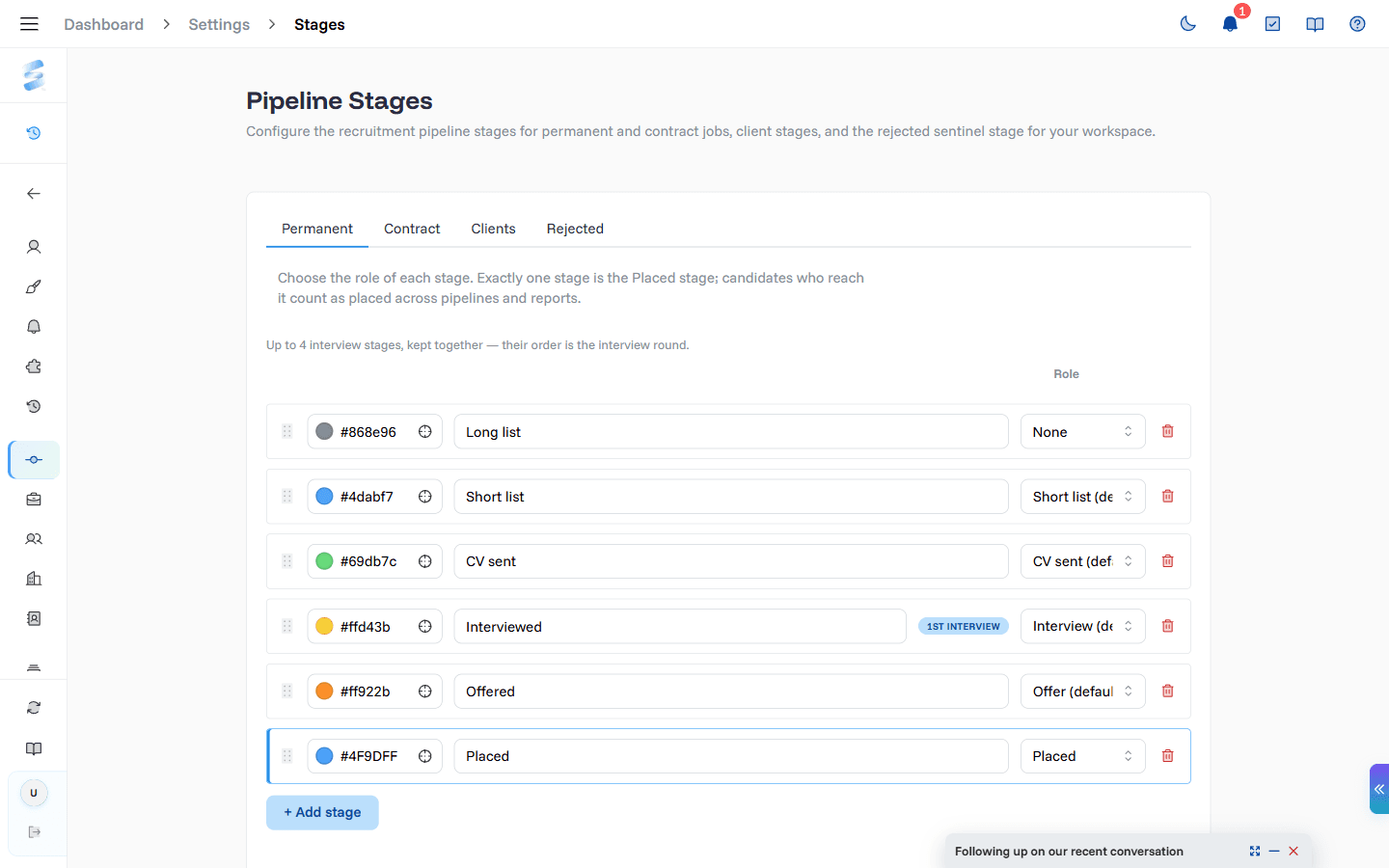
The Pipeline Stages page has four tabs:
- Permanent: stages for permanent jobs.
- Contract: stages for contract jobs.
- Clients: stages for your clients.
- Rejected: the stage candidates go to when they are rejected.
A dot next to a tab name means that tab has unsaved changes. If you switch tabs, Seekr asks whether to discard them.
Edit permanent and contract stages#
The Permanent and Contract tabs work the same way.
- Rename a stage by typing in its name box.
- Click the colour swatch to change its colour.
- Drag a stage by its handle to change the order.
- Choose its Role: None, Short list, CV sent, Interview, Offer, Profile Submission or Placed.
- Click + Add stage to add a new one at the end.
- Click Save, or Cancel to undo your changes.
How roles work:
- Exactly one stage is Placed. Candidates who reach it count as placed across pipelines and reports.
- Each of the other roles, apart from Interview, can belong to one stage only. Giving a role to a new stage takes it off the old one.
- You can have up to 4 Interview stages. Keep them next to each other: their order is the interview round.
Edit client stages#
- Open the Clients tab.
- Rename, recolour, reorder and add stages the same way.
- Choose each stage's role: None, Met, Job opened or Placed.
- Click Save.
Rename the Rejected stage#
- Open the Rejected tab.
- Change the Stage name or the Stage color.
- Click Save.
Delete a stage#
- Click the bin icon on the stage's row.
- Read the Delete stage window. It tells you how many applications are in that stage now.
- If there are any, pick where they go in Reassign to stage.
- Click Delete stage, or Confirm reassignment when applications move.