Install the Chrome extension
Open in SeekrInstall the Seekr extension and connect it to your workspace to capture LinkedIn profiles.
The Seekr LinkedIn Capture extension saves a LinkedIn profile into Seekr as a candidate or a contact in a few clicks, without copying anything by hand.
Open the Extension settings#
- Click Settings at the bottom of the main menu.
- Click Extension under Personalization.
The LinkedIn extension page has two parts: Install the extension at the top, and your device tokens below it.
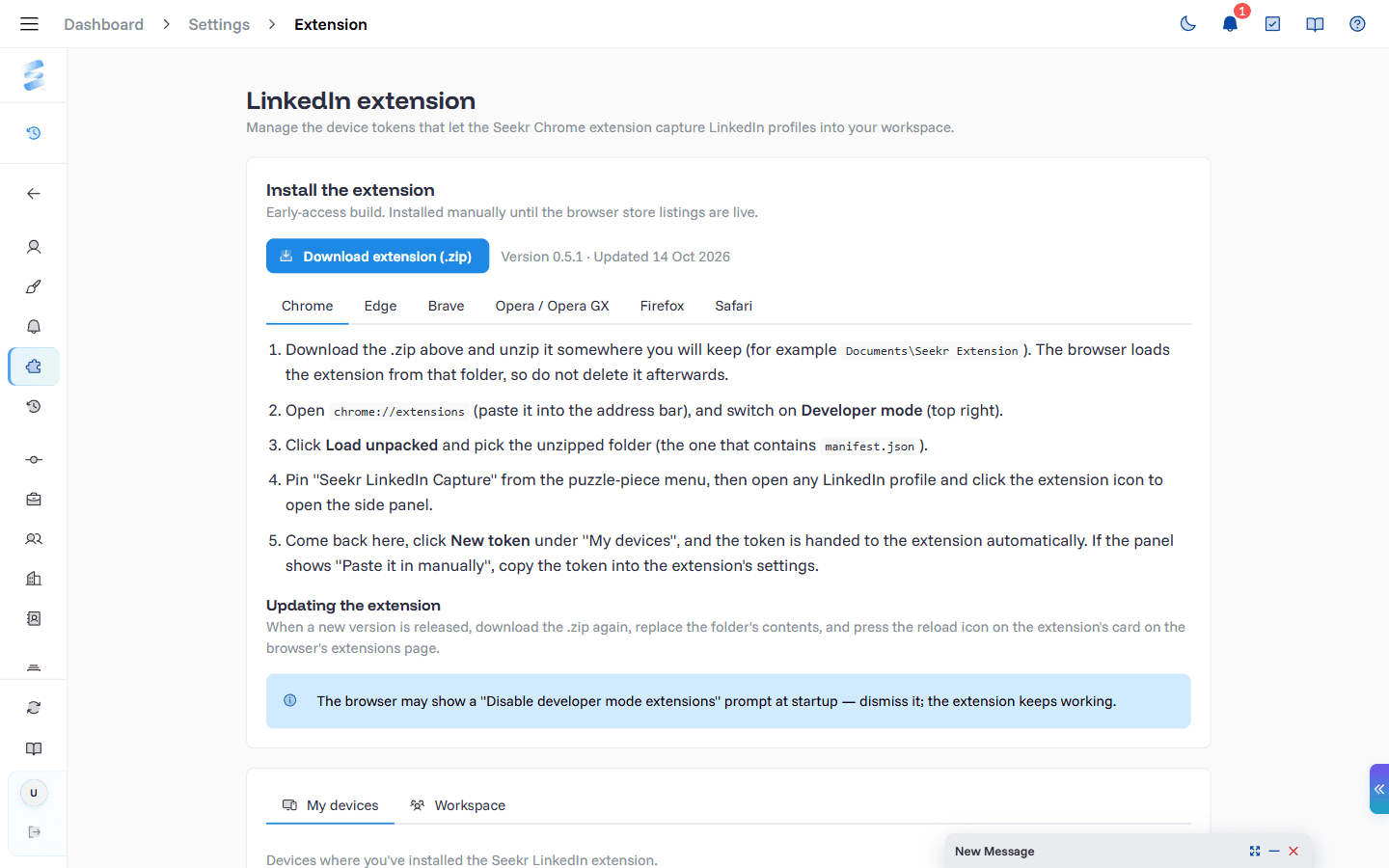
Install the extension in Chrome#
The extension is in early access, so you install it by hand for now. It works in Chrome, Edge, Brave and Opera; pick your browser's tab on the page for the exact steps.
- Click Download extension (.zip) and unzip it into a folder you will keep, for example in your Documents. Do not delete the folder afterwards: the browser loads the extension from it.
- Open your browser's extensions page (in Chrome, paste
chrome://extensionsinto the address bar) and switch on Developer mode in the top right. - Click Load unpacked and pick the unzipped folder.
- Open the puzzle-piece menu and pin Seekr LinkedIn Capture.
Create and paste your access token#
A device token connects the extension on this computer to your Seekr account.
- Back on the LinkedIn extension page, stay on the My devices tab and click New token.
- Give the device a Label you will recognise, such as "Work laptop", and click Create token.
- If the window says Connected, the extension saved the token for you. You are done.
- If it says Paste it in manually, click Copy, open the extension's side panel, paste the token under Connect Seekr and click Connect.
- Click Done.
Capture your first profile#
- Open any LinkedIn profile and click the extension icon to open the side panel. (On Opera, the panel lives in the browser sidebar.)
- Click Capture this profile. The extension reads the profile and fills in a form.
- Choose Candidate or Contact (BD) and check the details. For a contact, also pick the Client branch they work at.
- Click Save candidate (or Save contact).
- Click Open in Seekr to see the new record, or Capture another profile to keep going.
When a new version is released, download the .zip again, replace the folder's contents, and click the reload icon on the extension's card on your browser's extensions page.