Roles and permissions
Understand what each role in your workspace can see and do.
Every person in your Seekr workspace has one role, and that role decides which screens, buttons and reports they can use.
Compare the available roles#
Seekr has five roles. Each role can do everything the roles above it in this table can do, plus more:
| Role | In short |
|---|---|
| Consultant | Day-to-day recruiting: candidates, jobs, clients, contacts, messaging, tasks and the calendar. |
| Manager | Everything a consultant does, plus the reports of the consultants on their teams. |
| Director | Everything a manager does, plus reports for everyone across the locations they oversee. |
| Admin | Everything a director does, plus workspace settings, templates, team members and billing. |
| Superadmin | A role reserved for the Seekr team. It cannot be given to anyone from inside the app. |
See what consultants can do#
As a consultant you can:
- Find, add and edit candidates, clients, contacts and jobs.
- Move candidates through the stages of a job and log placements.
- Read and send messages, and manage your own tasks and calendar.
- Use the AI features, such as the AI Assistant and AI Matches.
- Change your own Personal Info, preferences and email signatures.
- Blacklist a candidate.
- Use templates your admins have set up. Email templates are shared with the whole team, so you see them read-only.
See what managers and admins can do#
Managers and directors also:
- See the reports of the people they look after: managers see the consultants on their teams, directors see everyone across their locations.
- See their team's interviews.
- Remove a candidate from the blacklist. The candidate goes back to the status they had before.
Admins also:
- Change the Workspace Layout settings, including pipeline stages. Only admins can change or delete stages.
- Create and edit email templates, CV templates, agreement templates and the profile form.
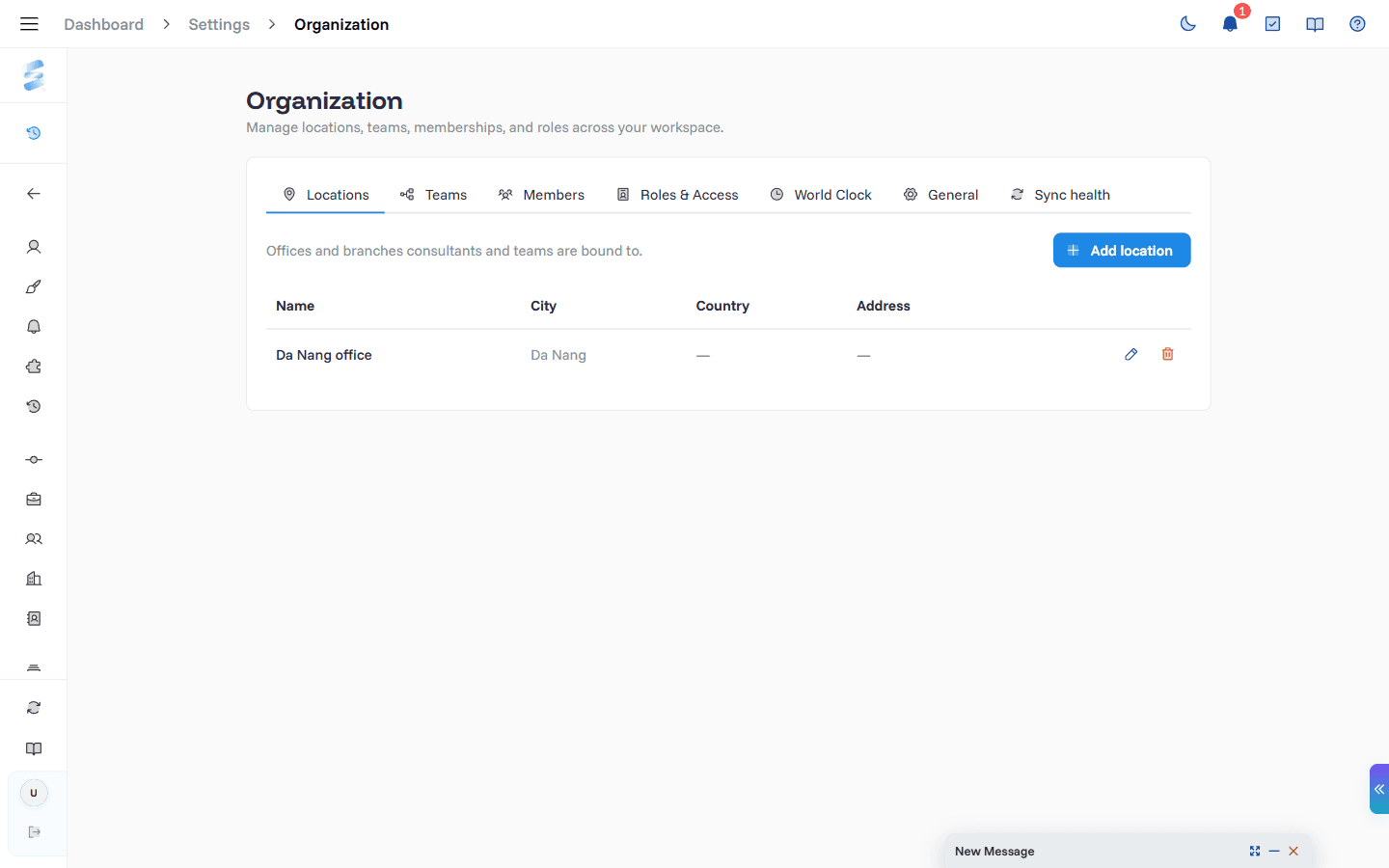
- Open the Admin part of Settings: Workspace setup, Billings and Organization, where they invite people, assign roles and manage teams and locations.
- Connect shared team mailboxes and manage everyone's extension tokens.
- Edit and duplicate the workflow templates that are reserved for admins.
- See the whole workspace in reports.
Find out which role you have#
Your role is set by your workspace admin.
- Ask your admin which role you have, or
- If you are an admin, open Settings → Organization and select the Roles & Access tab. The table lists each User with their Role and Location(s).