Candidate pipeline and stages
Add a candidate to jobs and move them through your hiring stages.
Each job has a pipeline of stages, such as shortlisted, CV sent, interview and placed. A candidate can be in several jobs at once, at a different stage in each.
See where a candidate is#
- In the candidate list, each row has a small pipeline that counts how many jobs the candidate is in at each stage.
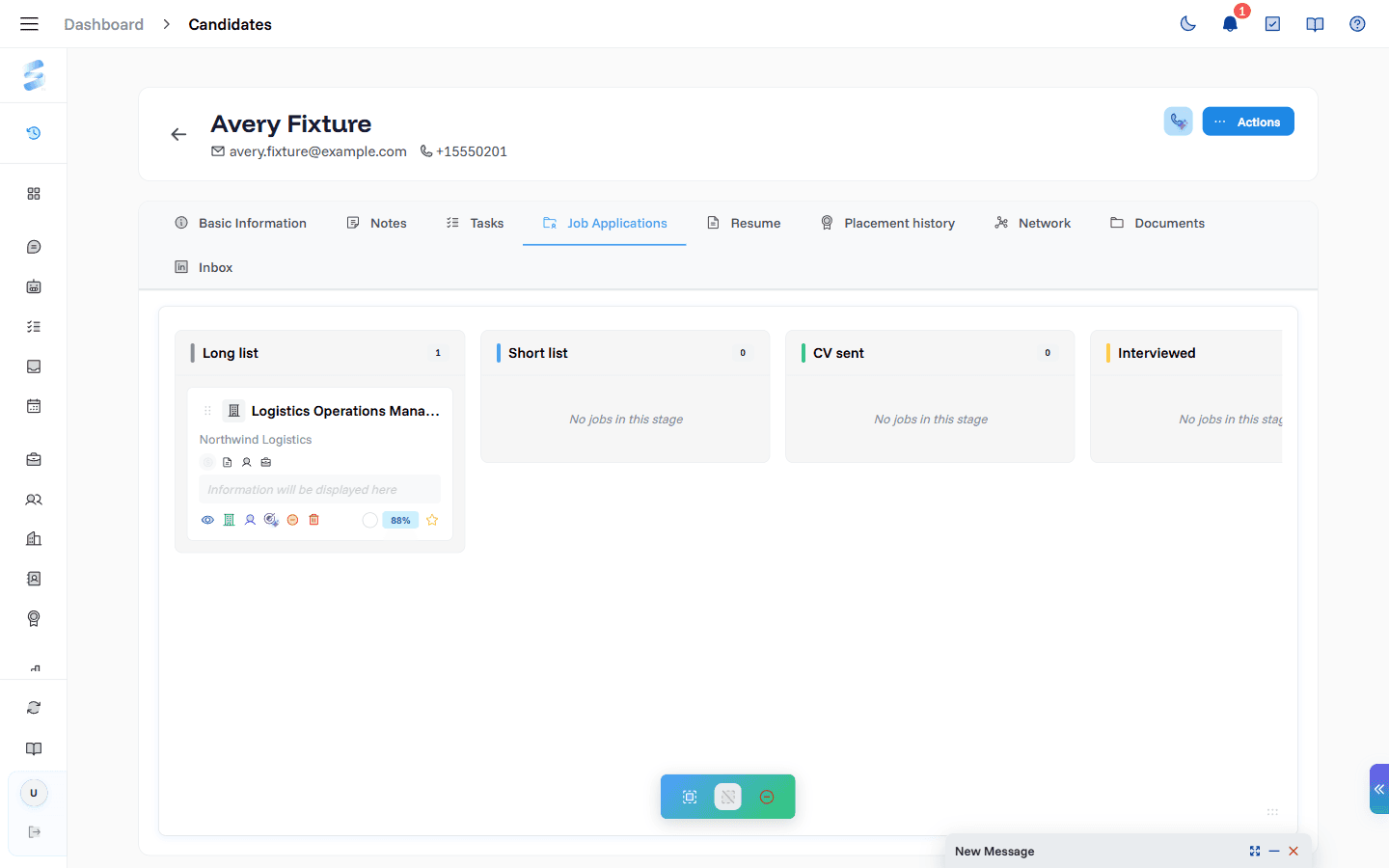
- On the candidate's page, select the Job Applications tab. Each job is a card in the column of its current stage. A column with nothing in it shows No jobs in this stage.
Each card shows the job, its client and contact, and the AI match score. Use the icons on a card to View Job, View Client or View Contact, to Star job, or to Re-run AI match score.
Add a candidate to a job#
From the candidate's page:
- Open Actions and click Shortlist to Job. If the candidate is in no jobs yet, the Job Applications tab also shows a Shortlist to Job button.
- Search for the job by name, or switch on AI Smart Search to search by meaning, and pick it.
- Click Add … to job name. Candidates who are already in that job are marked In Pipeline and skipped.
From the candidate list, tick one or more candidates and click Add to Job. You can also pick a job when you add new candidates from their CVs.
Change a candidate stage#
- Open the candidate and select the Job Applications tab.
- Drag the job card into the column of the new stage.
Moving a candidate can prepare the emails your team has set up for that stage, ready for you to check and send. Moving into an interview stage offers to schedule the interview.
Reject or remove#
- Reject Application on a card moves it to the rejected group. Click Show rejected zone in the toolbar to see rejected applications, and Restore Application to bring one back.
- Remove Application takes the candidate out of the job entirely. Click it twice to confirm.
To act on several jobs at once, select their cards and use the toolbar: Select all … loaded, Clear, Reject selected, Restore selected, Confirm Interview or Remove selected from job.
Understand stage history#
Every stage move is recorded on the job. Open the job and look at its activity timeline to see who moved the candidate, to which stage, and when.
A candidate's status is separate from their stages. It describes the candidate overall: Active, Inactive, Placed, Archived or Blacklisted.