Dictation (voice input)
Speak instead of typing in notes, task descriptions and the AI Matches search.
Dictation turns what you say into text, so you can capture a note or a task straight after a call without typing.
Before you start#
- Use a browser that supports voice input. If it does not, the microphone button tells you Voice input isn't supported in this browser.
- Allow Seekr to use your microphone when your browser asks.
Find the microphone button#
The microphone button appears in three places:
- Notes: in the toolbar of the note editor, when you add a note to a candidate, contact or job.
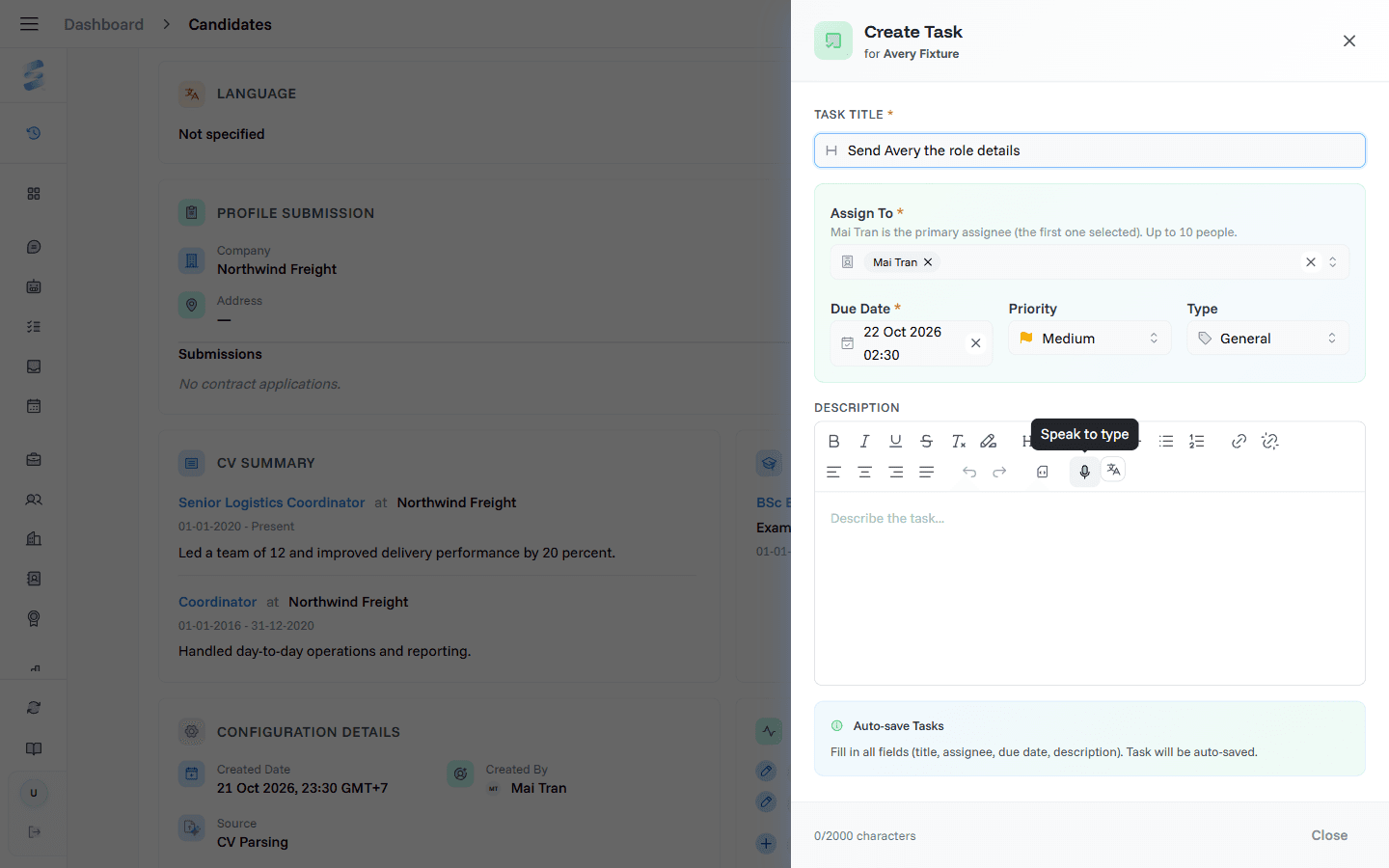
- Tasks: in the toolbar of the task description editor.
- AI Matches: in the search bar on a job's AI Matches tab (Speak your search).
Hover over the button to see Speak to type.
Start and stop dictation#
- Click the microphone button (Start voice input) and start speaking.
- While you record, the toolbar shows a timer. In notes and tasks it also shows how many characters you have left.
- Click Stop recording and transcribe when you are done. Seekr shows Transcribing… while it turns your speech into text.
- To throw a recording away, click Discard recording instead.
A recording stops by itself after 60 seconds. Start a new one to keep going.
Fix and insert the text#
The text is inserted where your cursor was, so you can dictate in several parts. Read it through and correct any names or terms before you save.
In notes and task descriptions, dictation is tidied for you: lists you speak become bullet or numbered points, and a change of topic starts a new paragraph. In the AI Matches search, your words are kept exactly as spoken.
Pick a language#
You can dictate in your own language. For notes and tasks, choose whether the text stays in the language you spoke or is translated to English:
- For one recording: click the translate button next to the microphone. Its label tells you what a click does: Translate to English or Keep spoken language.
- As your default: open Settings → Preferences. Under Voice Input, set Voice transcription language to Spoken language or English.
The AI Matches search is never translated.