AI Assistant
Open in SeekrAsk the AI Assistant about your candidates, jobs and pipelines, and let it do routine work for you.
The AI Assistant is a chat where you ask questions about your recruitment data and ask it to do routine work, such as creating a follow-up task.
Before you start#
Everyone in your workspace can use the AI Assistant. Its answers use your organisation's monthly AI allowance. See AI usage limits and plans.
Open the AI Assistant#
You can reach the assistant in two ways:
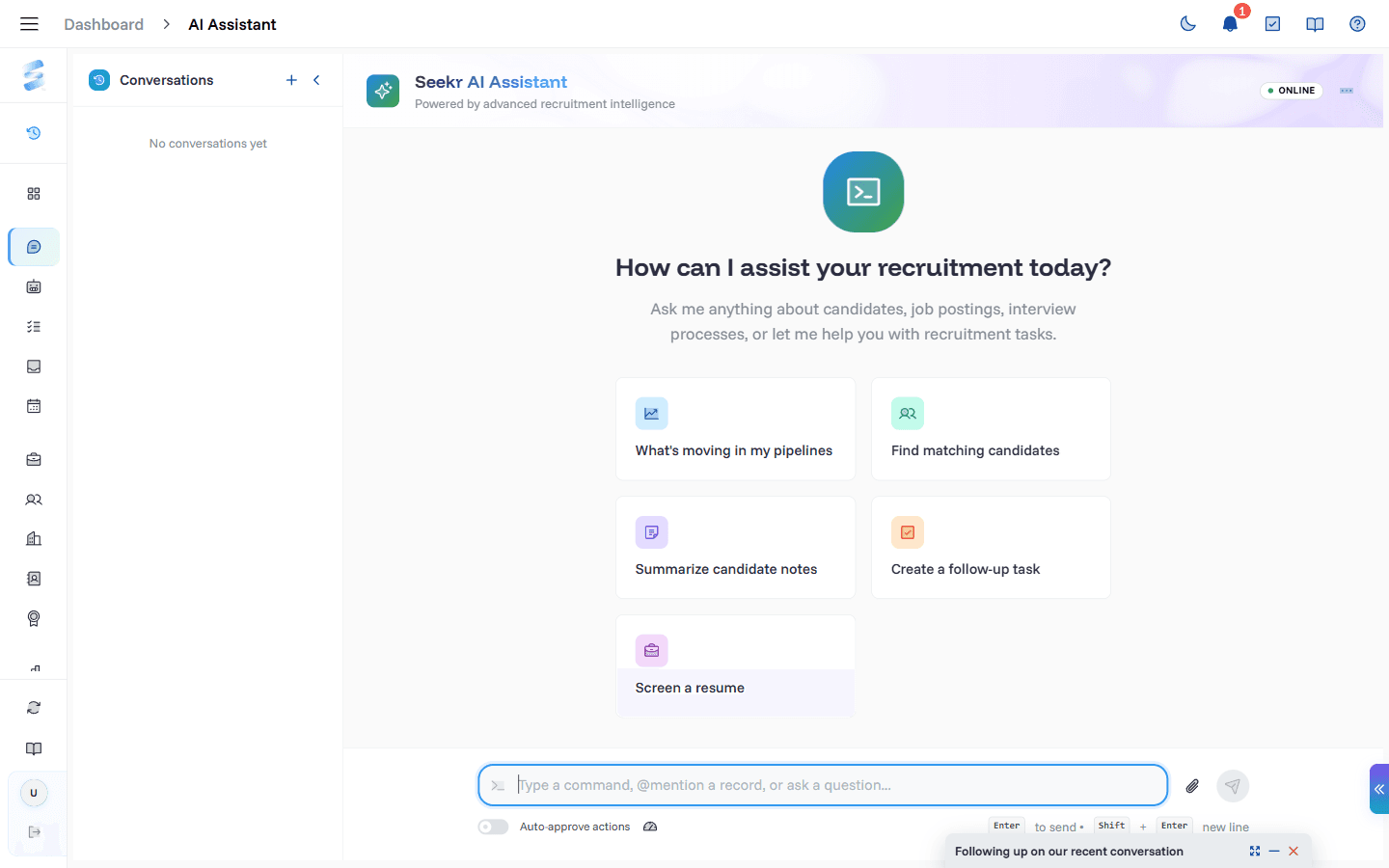
- Click AI Assistant in the menu on the left to open it as a full page, with your past conversations in a sidebar.
- Or click the AI Assistant button in the bottom-right corner of any screen. It opens the same assistant in a window over the page you are on. Click Open full page to move to the full view.
Click New conversation to start a fresh chat. Your earlier conversations stay in the sidebar so you can go back to them.
Ask a question#
- Type in the box at the bottom: Type a command, @mention a record, or ask a question...
- To point the assistant at a specific record, type
@followed by a few letters of a name. Pick a candidate, contact, consultant, job or client from the list. The record appears as a chip above the box. - To attach files, click Attach files or drop them onto the box. You can attach PDF, DOCX, PNG, JPEG or WebP files up to 8 MB in total.
- Press Enter to send. Press Shift + Enter for a new line.
Use suggested prompts#
A new conversation shows a few starting points under How can I assist your recruitment today?:
- What's moving in my pipelines
- Find matching candidates
- Summarize candidate notes
- Create a follow-up task
- Screen a resume
Click one to send it. You can then refine the request in your own words.
Review answers and actions#
- Click Copy under an answer to copy its text.
- Some answers have a Thought process link. Click it to see how the assistant worked through your request.
- If the assistant needs more detail, it shows a question card with options. Pick one, or type your own answer.
When the assistant wants to change something in Seekr, such as creating a task, it shows an approval card first:
- Read what it is about to do. The card names the candidate, contact, job, client or application it will change.
- Click Approve to go ahead, or Deny to stop it.
When you ask the assistant to create a task, the task is assigned to you unless you name a colleague, for example "assign it to Anna". The assistant looks up your team to find them. The approval card shows who the task is for and when it is due, in your own time zone, so check both before you click Approve. You can only assign a task to people in your workspace.
If the AI service cannot be reached, the assistant tells you it is temporarily unavailable and asks you to try again.
When you ask it to find candidates for a job, it shows a Run card before scoring candidates. Click Run and stay on the page until it finishes.
Tidy up conversations#
Open the menu in the top-right corner of a conversation and click Delete conversation to remove it.