Adverts, activities, contacts and documents
Use a job's Adverts, Activities, Connected and Documents tabs.
Besides its pipeline, every job has tabs for its public advert, its activity timeline, the people and records it is connected to, and its internal documents.
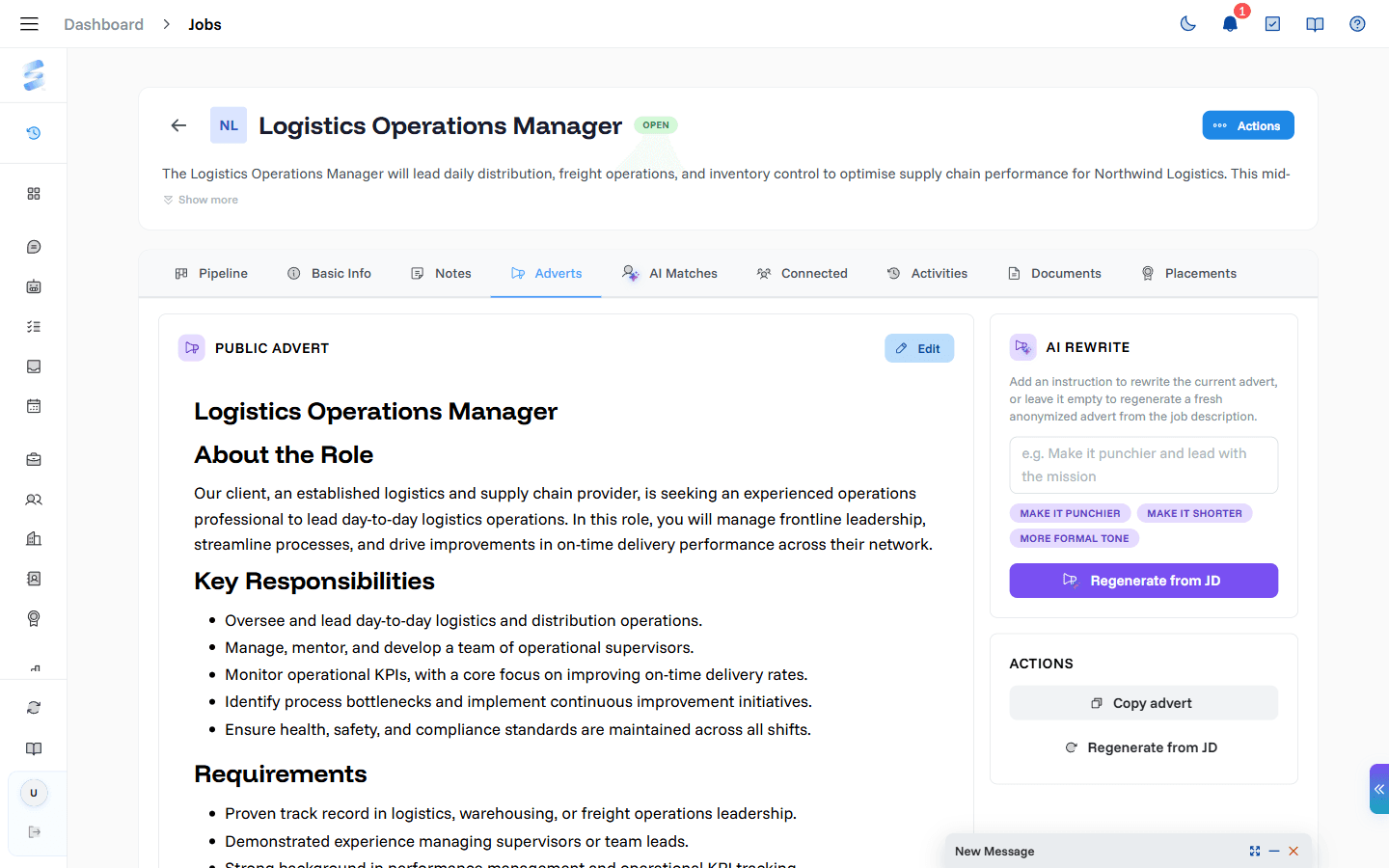
Write an advert on the Adverts tab#
- Open the job and select the Adverts tab. A new job shows No advert yet.
- Click Generate from job description. AI writes a public advert from the job description and removes the client and contact details, so it is safe to share.
- Read the Public Advert. Click Edit to change it by hand, then Save.
- To let AI rework it, type an instruction under AI Rewrite (or click one of the ready-made tone suggestions) and click Rewrite advert. Leave the instruction empty to write a fresh one instead.
To start over from the job description at any time, open Actions and click Regenerate from JD. Seekr asks first, because this replaces the current advert.
Follow the Activities tab#
The Activities tab is one scrolling timeline of everything that happened on the job, including every stage move with the stage name. New activity appears while you watch. Scroll down to load older entries.
See who the job is connected to#
The job's client and contact are shown on the Basic Info tab. To move the job to another contact at the same client, open Actions and click Reassign Contact.
The Connected tab shows:
- Connected Candidates: candidates placed at, or working within, the job's industry who may be worth a call.
- Network: the people, clients and records linked to this job. Click Summarise this network for a one-paragraph overview, or Find similar records. Links marked Inferred were discovered by Seekr rather than entered by your team, and never change your data.
Attach documents#
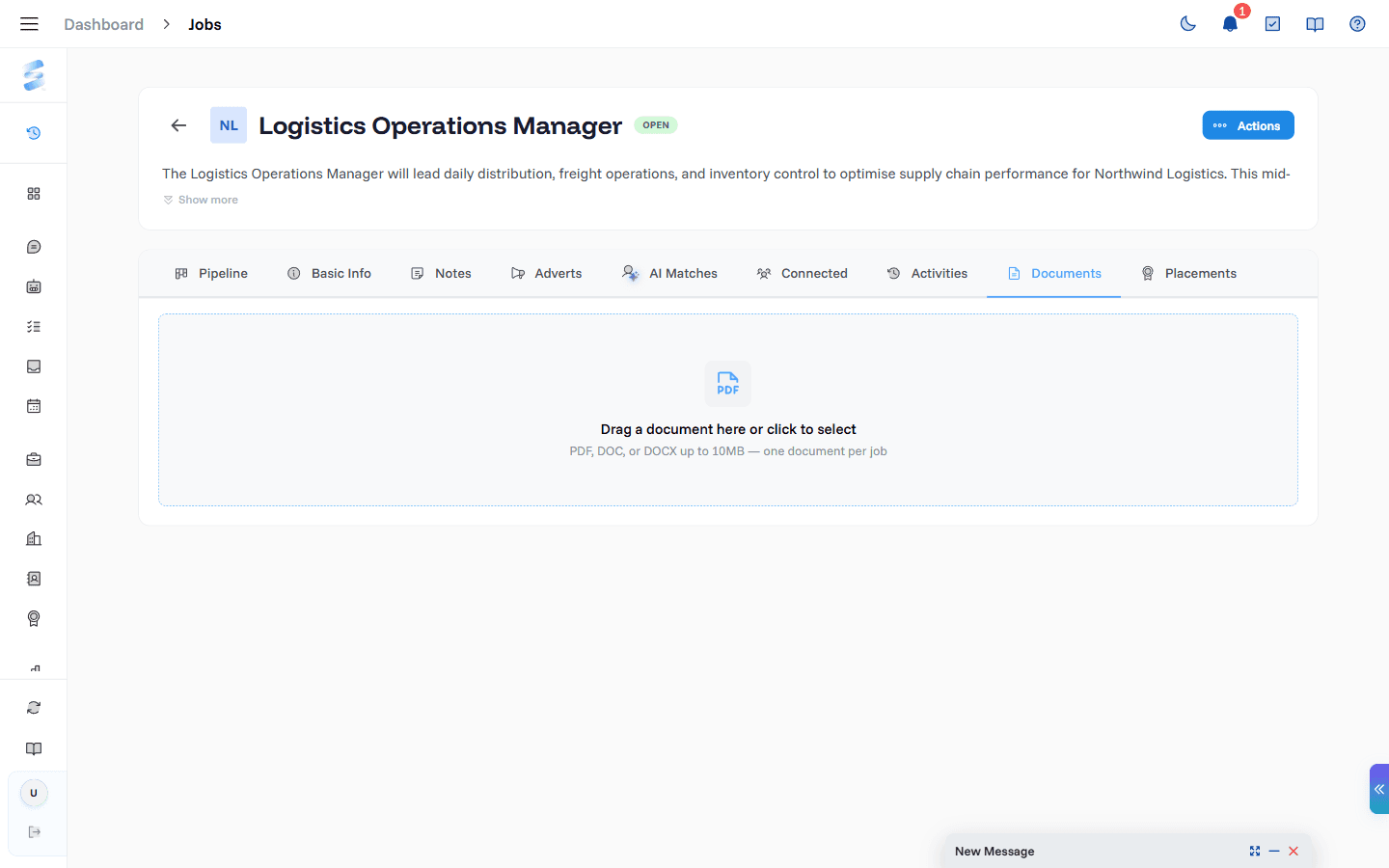
The Documents tab holds one internal document per job, such as the client's full job specification.
- Open the Documents tab.
- Drag a document onto the tab, or click to select one. PDF, DOC and DOCX files up to 10 MB are accepted.
- Use Download document, Replace or Delete document to manage it later.
AI uses the document when it matches candidates to the job. Switch on Confidential to keep the document out of AI candidate matching and out of emails to candidates.