Preferences and world clock
Open in SeekrSet your appearance, accessibility, email font, voice input, world clock and calendar sharing.
Preferences is where you make Seekr look and behave the way you like. Everything here applies to your own account only.
Before you start#
Everyone can open Preferences. You do not need an admin role.
Open Preferences#
- Click Settings at the bottom of the main menu.
- Under Personalization, click Preferences.
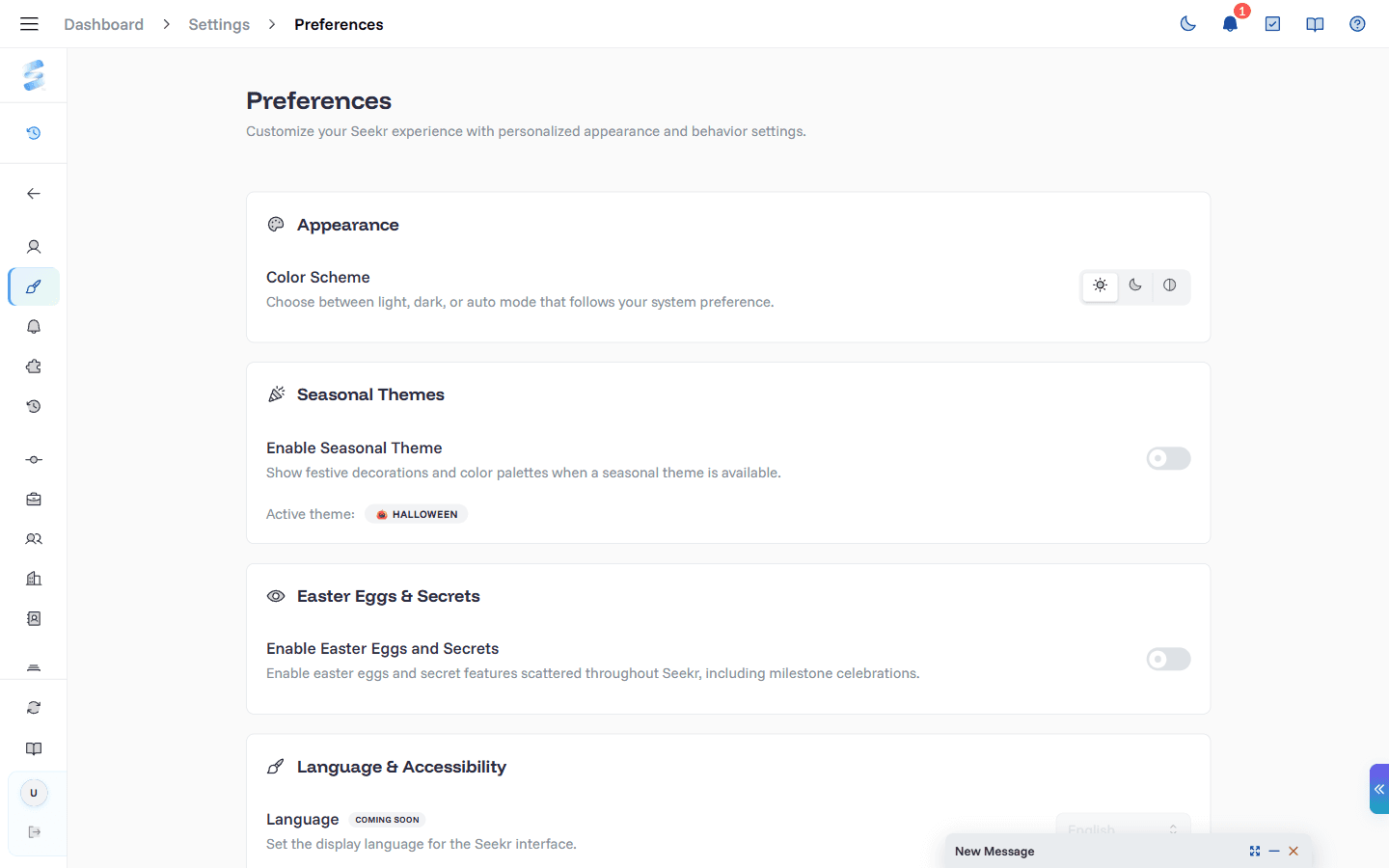
Each section is a card. Most changes save as soon as you make them.
Change how Seekr looks#
In the Appearance card:
- Pick a Color Scheme: Light, Dark or Auto. Auto follows your computer's setting.
In the Seasonal Themes card:
- Turn on Enable Seasonal Theme to see festive decorations and colours when a seasonal theme is running. When none is running, the card says so.
In the Easter Eggs & Secrets card:
- Turn on Enable Easter Eggs and Secrets to see small surprises around Seekr, including milestone celebrations.
Set language and accessibility#
In the Language & Accessibility card:
- Move the Button Visibility slider to fade some action buttons until you hover over them.
Language, Reduce Motion and Compact Mode are marked as coming soon and cannot be changed yet. Seekr is in English for now.
Choose your email font#
In the Email composer card:
- Pick a Default font and a Default size.
- Check the preview below them.
This font is used for new emails, calendar invites and email templates. You can still change the font of any single email while you write it.
Choose your voice input language#
In the Voice Input card, set Voice transcription language:
- Spoken language keeps dictated notes and tasks in the language you spoke.
- English translates them to English.
Add world clock cities#
The World Clock card chooses which time zones appear on your dashboard clock. Your own local time is always shown first.
- Tick the time zones you want to see. Each one shows its current time and offset.
- You can pick up to 8. A counter shows how many you have chosen.
Share your calendar#
In the Calendar Sharing card:
- Turn on Copy Assigned Tasks to My Calendar to get a personal copy of a task's event in your own Outlook calendar when someone assigns you a task. This applies to new tasks and later changes only.
- For each Outlook account you connected, turn on the switch to let teammates see that calendar in their account switcher.
If you have not connected Outlook yet, the card asks you to connect it from the Messaging page first.