Sign in and set up your profile
Open in SeekrSign in, set or reset your password and fill in your Personal Info.
Sign in with your work account or your email and password, then add your name, photo and contact details so your colleagues can recognise your work.
Sign in to Seekr#
- Go to the Seekr sign-in page. It opens with Welcome back.
- Choose how to sign in:
- Click Continue with Google or Continue with Microsoft to use your work account.
- Or enter your Email and Password under Or continue with email.
- Tick Remember me if you are on your own computer.
- Click Sign in. Seekr opens your dashboard.
Set or reset your password#
When you are invited. Your admin invites you by email. Open the link in the email and Seekr shows Choose a password:
- Enter a Password of at least 8 characters.
- Type it again in Confirm password.
- Click Save and continue. You are signed in and taken to the dashboard.
When you forget your password:
- On the sign-in page, click Forgot password?.
- Enter the email you sign in with and click Send the link.
- Open the email and follow the link to choose a new password. The link works once.
Open Personal Info#
- Click Settings at the bottom of the main menu.
- Click Personal Info under Personalization.
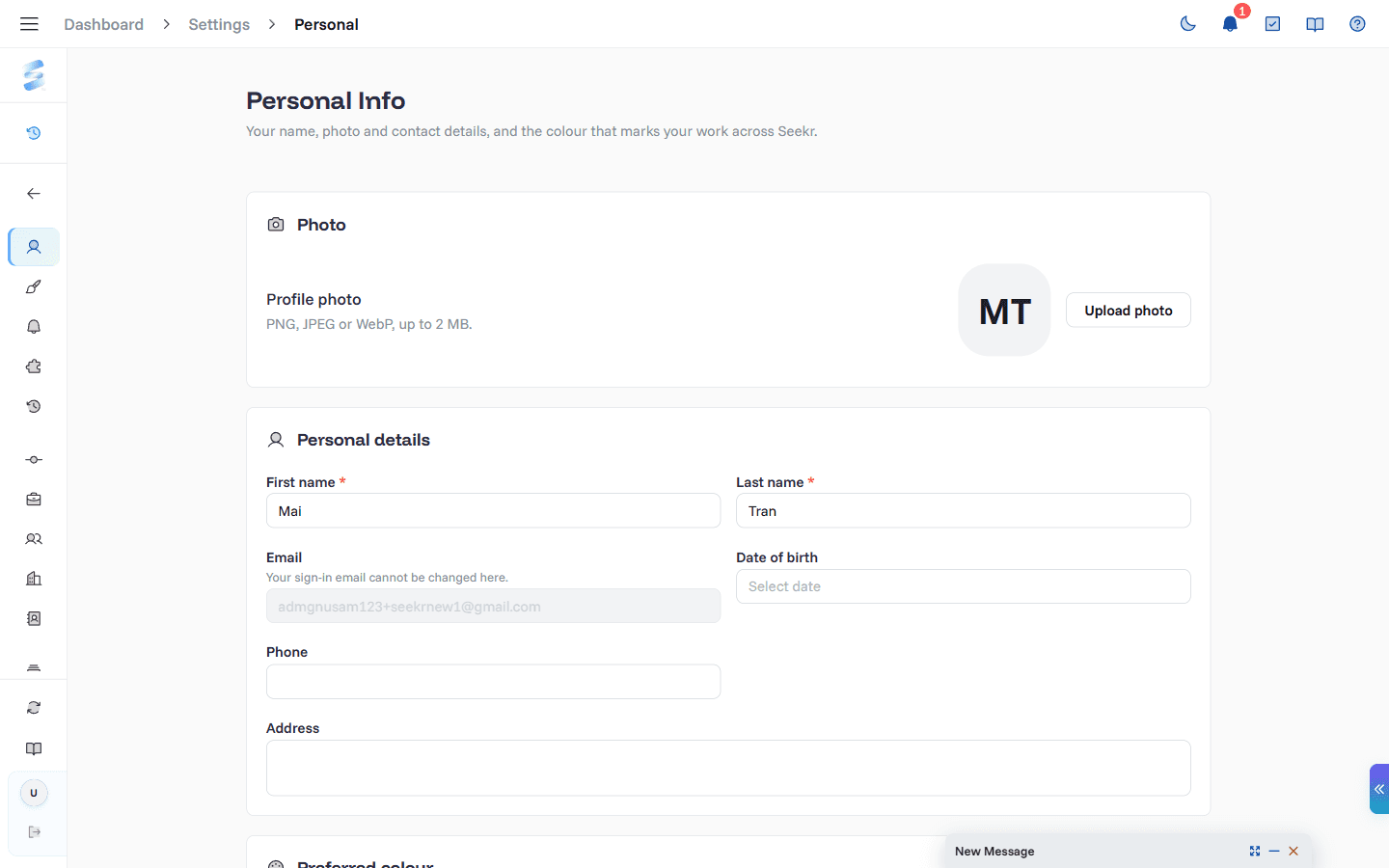
The page shows your name, photo and contact details, and the colour that marks your work across Seekr.
Update your name and photo#
- Under Profile photo, click Upload photo and pick a PNG, JPEG or WebP image of up to 2 MB.
- Under Personal details, fill in your First name, Last name, Date of birth, Phone and Address. Your Email is the one you sign in with and cannot be changed here.
- Under Preferred colour, pick Your colour. Seekr uses it to mark the jobs you are actively searching on, so colleagues can tell them apart.
- Click Save.