Email templates and signatures
Open in SeekrCreate reusable email templates and design your email signatures.
Email templates save you from writing the same email twice, and signatures add your details to the end of every email you send.
Before you start#
- Everyone can open Email Templates and create their own signatures.
- Admins only can create, edit or delete email templates. Everyone else can view them and use them when writing an email.
Open Email Templates#
- Click Settings in the main menu.
- Under Templates, click Email Templates.
The page has two cards: Email Templates and Signatures.
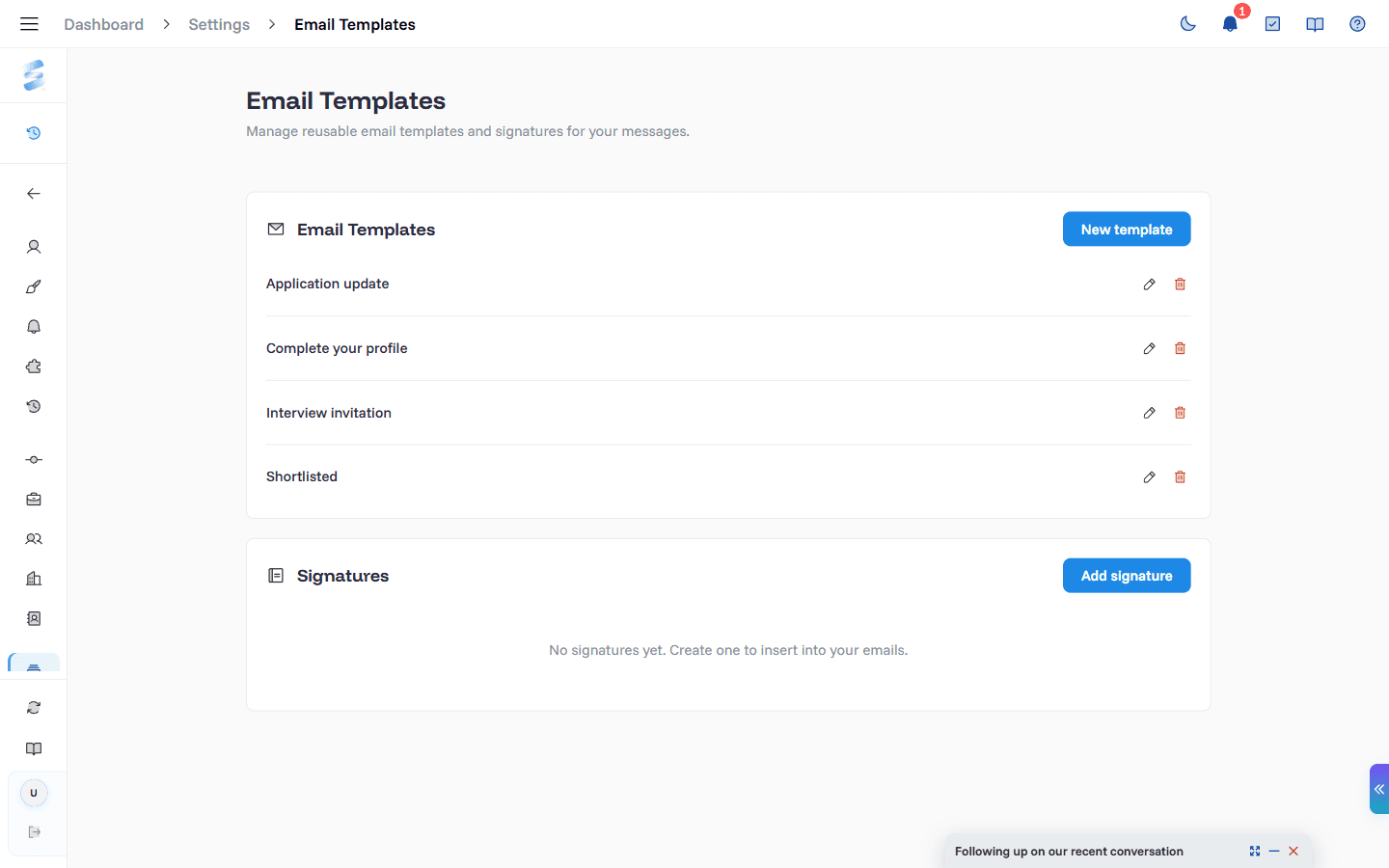
Create a template#
- In the Email Templates card, click New template.
- Give it a Name, for example "Shortlist intro".
- Write the Subject and the Body.
- Click Create template.
To change a template later, click the pencil icon on its row. To remove it, click the bin icon. If you are not an admin you see an eye icon instead, which opens the template read-only.
Add placeholders#
Placeholders are filled in automatically when the email is sent, so one template works for every candidate, job or client.
- Click Insert placeholder above the subject or the body.
- Search, or browse the groups: Candidate, Job, Client, Contact, Consultant, Interview, Timesheet / invoice and Links.
- Click a placeholder to insert it, for example
{{candidate_first_name}}.
Draft a template with AI#
- In the template window, open Draft with AI.
- Fill in What is this email for? and, if you like, Instructions (optional).
- Click Draft with AI. If the template already has text, the button reads Rewrite with AI and rewrites what is there.
- Read the draft and edit it before you save.
Create a signature#
- In the Signatures card, click Add signature.
- Type a name for the signature at the top.
- Build the signature by dragging blocks onto the canvas, such as Text, Photo, Line, Gap, Phone, Email, Address and Social Links.
- Or start faster with Start from a template, or paste an existing signature with Build from existing HTML with AI.
- Turn on Default if this should be your main signature.
- Click Create signature.
Back on the Signatures card, use the star to Set as default, the pencil to edit and the bin to delete.