Find candidates in the list
Open in SeekrBrowse, filter and search your candidate list, including AI Smart Search.
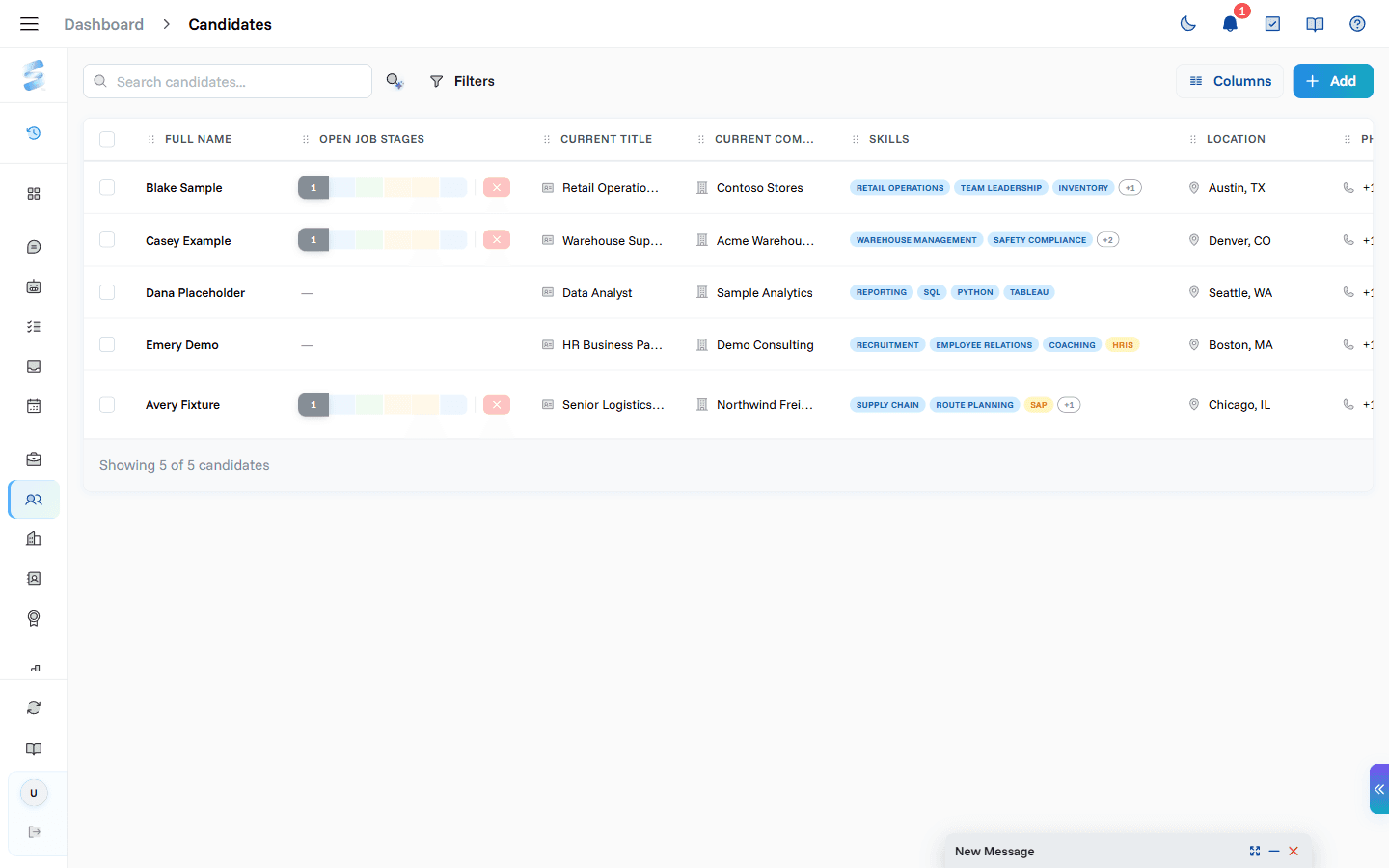
The Candidates list shows everyone in your workspace's candidate database, with a search box, filters and columns you can choose.
Open the candidate list#
- Click Candidates under Database in the main menu.
- Scroll down to load more candidates. The list keeps loading as you scroll.
Each row shows the candidate's details and a small pipeline that counts the jobs they are in at each stage.
Filter the list#
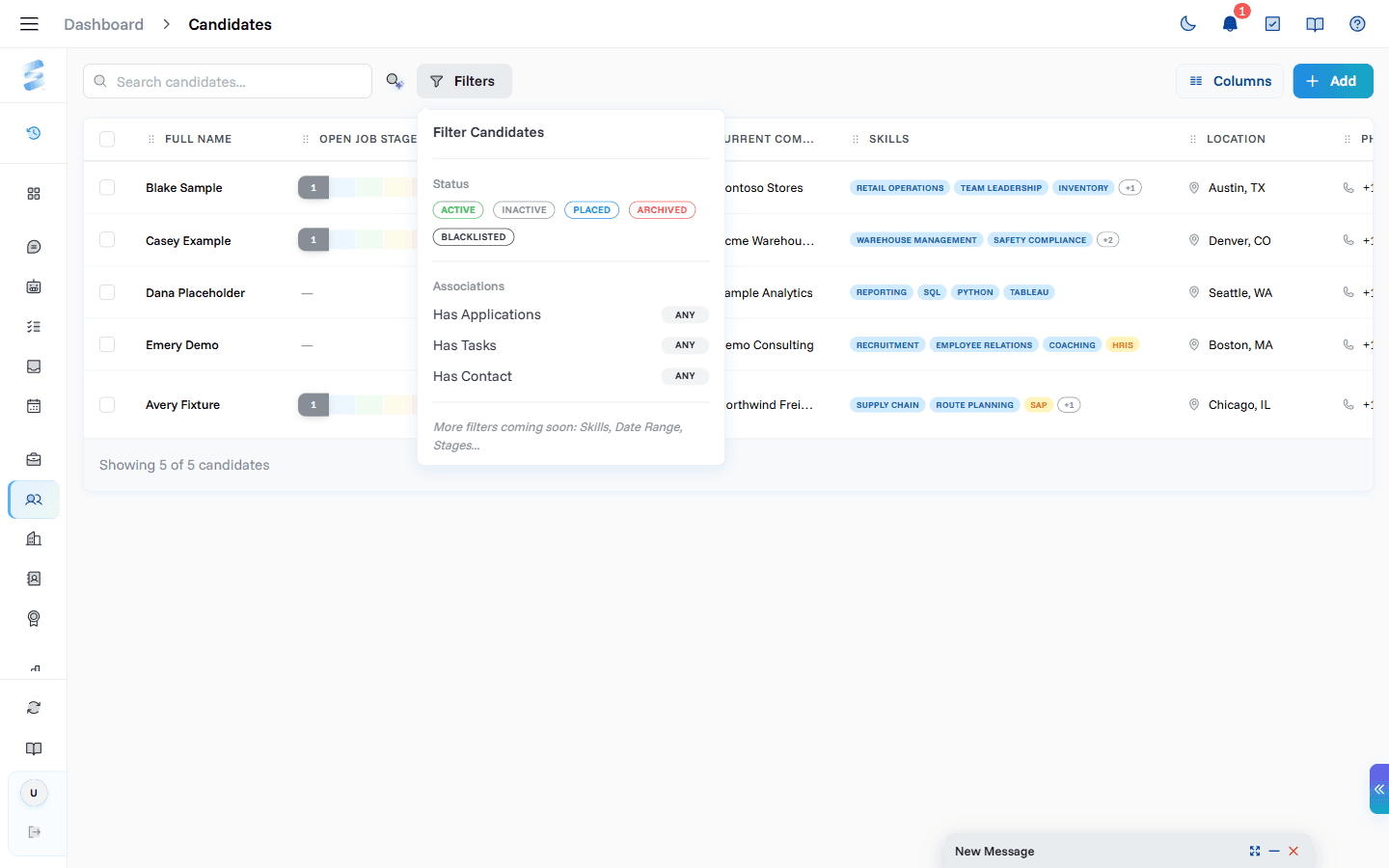
- Click Filters next to the search box.
- Under Status, pick one or more of Active, Inactive, Placed, Archived and Blacklisted.
- Under Associations, click Has Applications, Has Tasks or Has Contact to cycle between Any, Yes and No.
- Click Clear all to remove every filter.
A number on the Filters button shows how many filters are on.
Choose your columns#
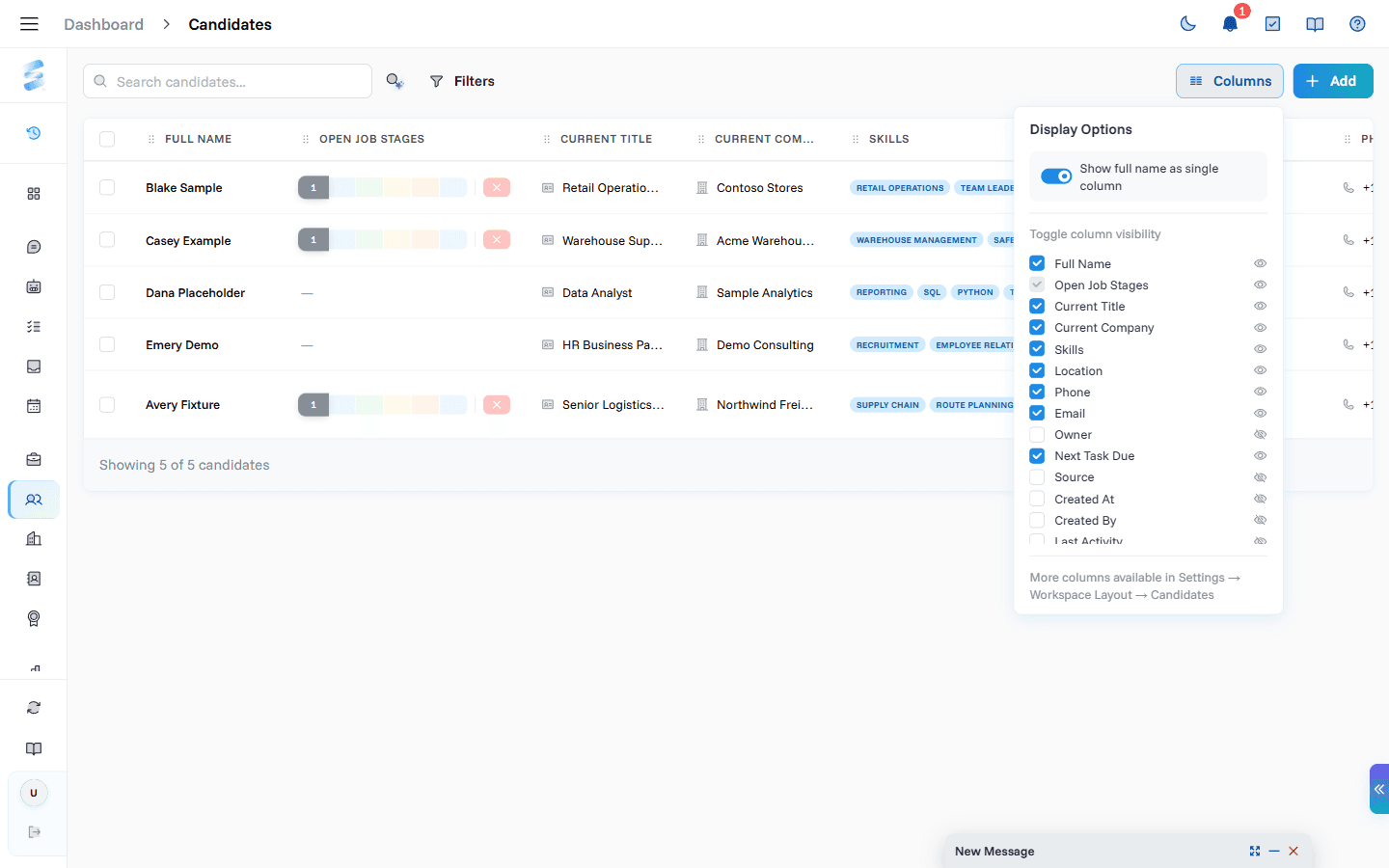
- Click Columns.
- Tick or untick a column to show or hide it. Required columns cannot be hidden.
- Switch on Show full name as single column if you prefer one name column to separate first and last names.
Seekr remembers your choice for next time. Admins can make more columns available under Settings → Workspace Layout → Candidates.
Search with AI#
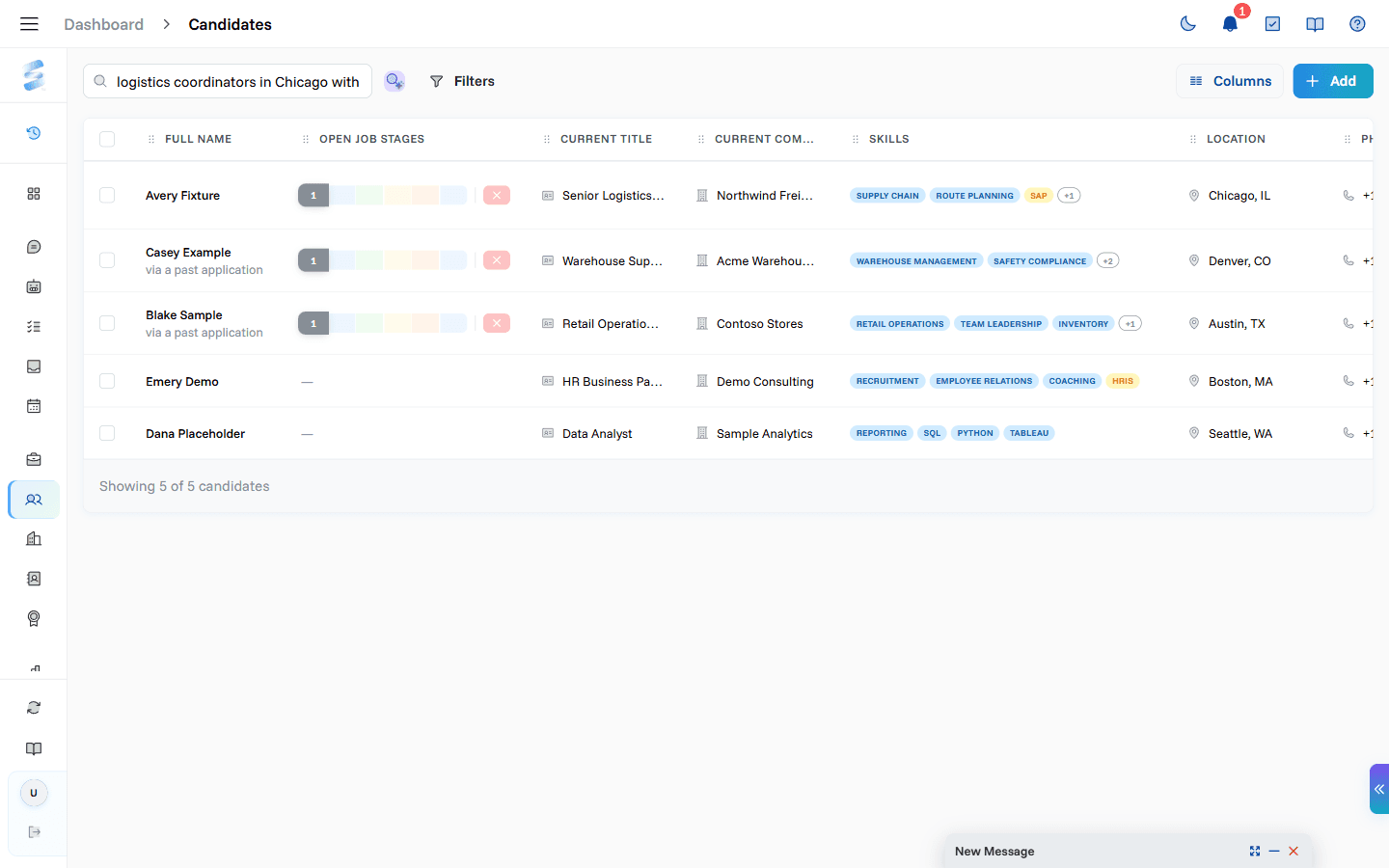
The search box has two modes:
- Text search (the default, Search candidates...) looks for names and other exact words. It also finds a candidate by phone number: type at least four digits, in any format and with or without the country code, such as
0912 345 678. - AI Smart Search finds candidates by meaning. Click the AI icon next to the search box to switch it on, then describe who you need in plain words, such as "Java developer in Bangkok with banking experience".
When a candidate turns up for a reason that is not obvious from their name or skills, a short hint under the row explains why they matched. Your filters still apply in both modes.
Work with several candidates#
- Tick the box at the start of each row you want. Or click Select all … loaded next to the search box to tick every row shown so far (more rows load as you scroll). Clear unticks them all.
- Use the buttons that appear next to the search box:
- Add to Job adds every selected candidate to a job.
- Create Note writes a note (when one candidate is selected).
Open a candidate#
- Click a row to open a quick view of the candidate on the side of the screen. From there you can Take Note without leaving the list.
- Click View Full Details in the quick view to open the full candidate page.