CVs, previews and saved CVs
Upload a CV, preview it next to your notes and open saved agency CVs.
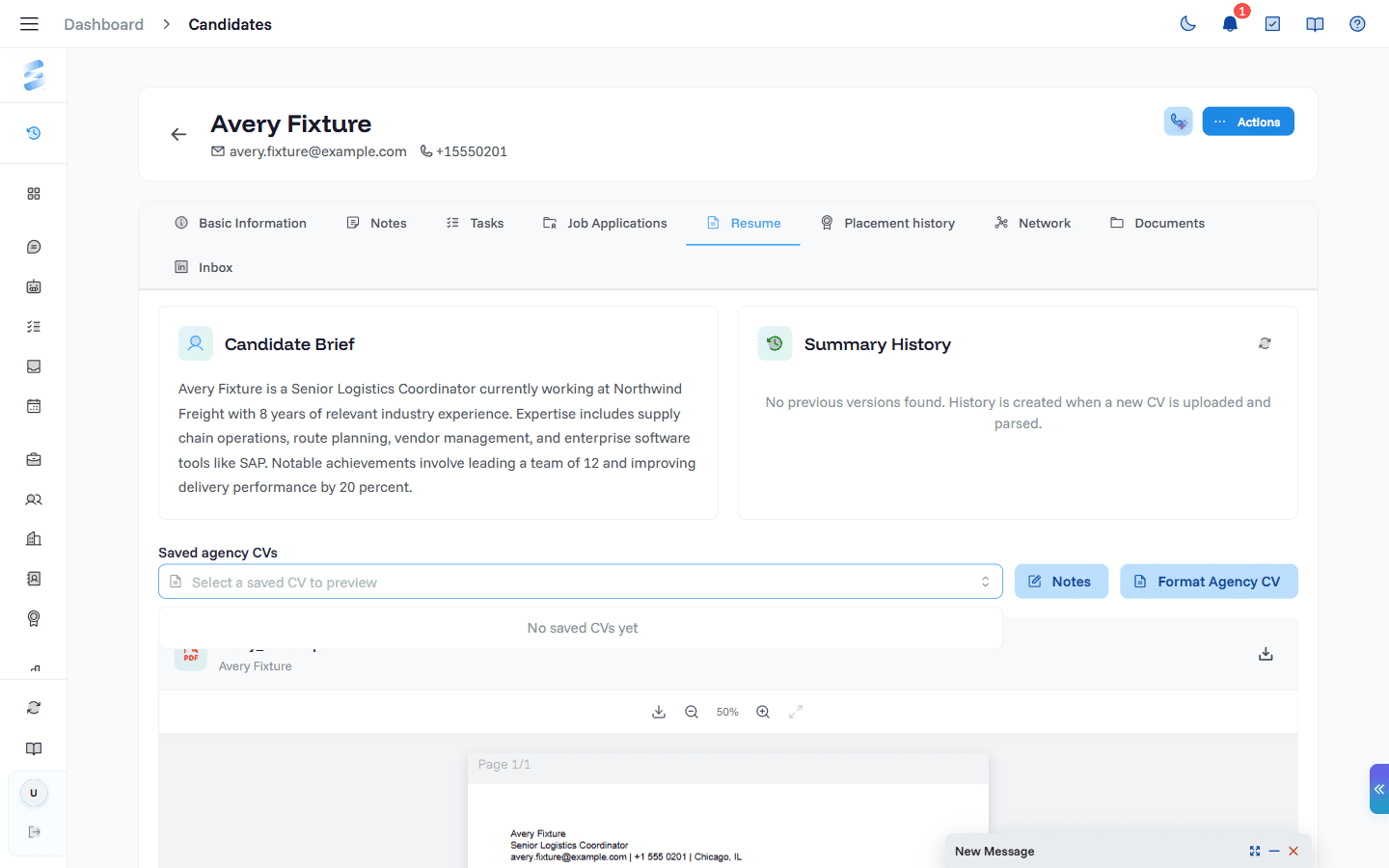
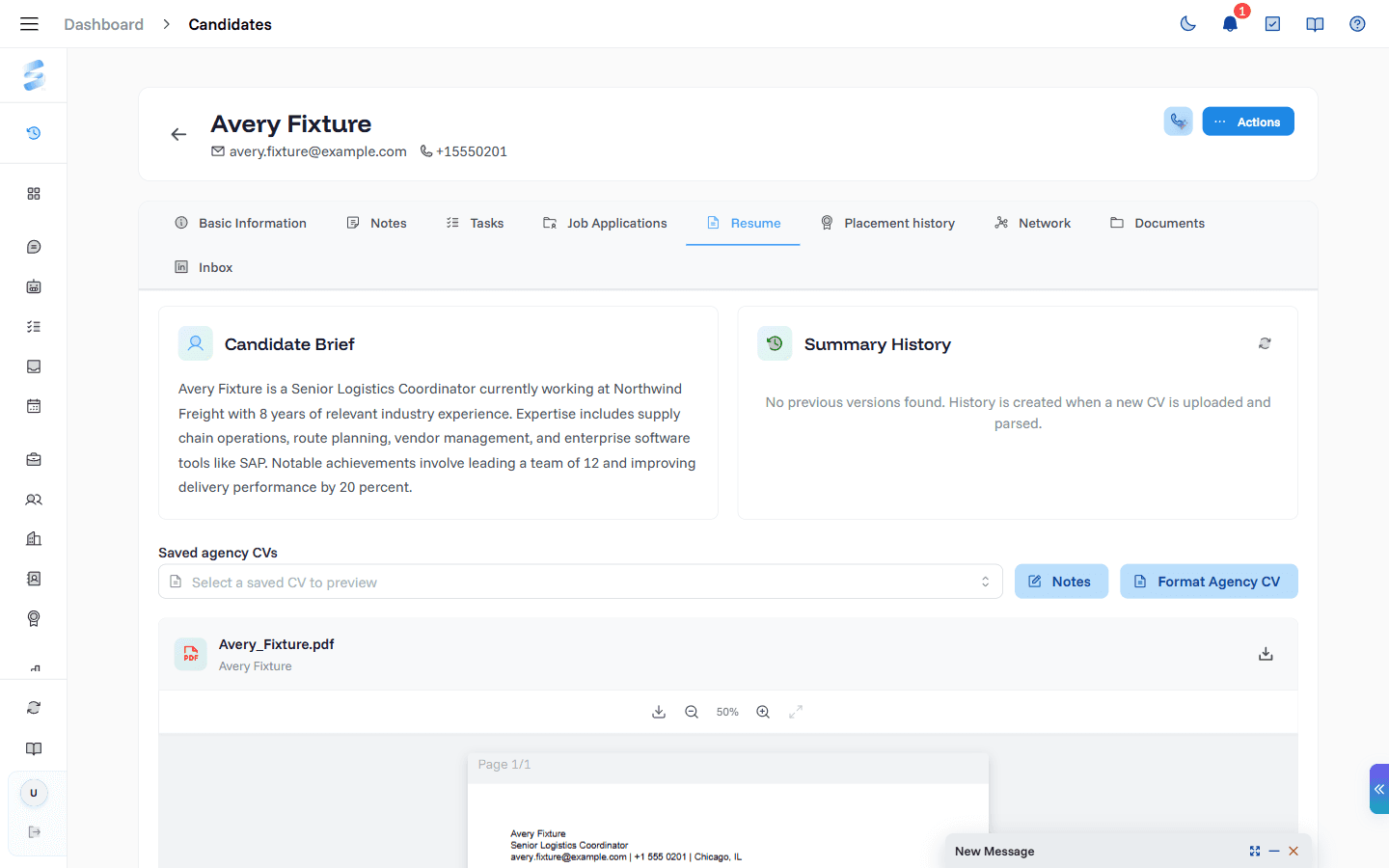
The Resume tab on a candidate's page holds their CV, the AI-written candidate brief, earlier CV versions and every agency CV your team has saved for them.
Upload a CV#
If the candidate has no CV yet, the tab shows No Resume Found.
- Open the candidate and select the Resume tab.
- Click Attach CV.
- Drop a PDF or Word document into the window, or click to select one.
- Leave Parse CV and update profile fields switched on if you want AI to fill in the profile from the CV.
- Click Attach CV.
A candidate captured from LinkedIn shows a LinkedIn snapshot badge instead of a CV. Click Replace with real CV to add the real one the same way.
Read the candidate brief and history#
At the top of the tab:
- Candidate Brief is a short summary AI writes when the CV is parsed.
- Summary History keeps the earlier versions. A new version is added each time a new CV is uploaded and parsed. Click Refresh history to reload it.
Preview a CV#
The CV opens in a preview below the brief, so you can read it without downloading it.
- Click Download in the preview to save a copy.
- When the candidate also has a formatted agency CV, switch between Original and Formatted at the top of the preview.
- If the preview does not load, click Reload Preview or Try Again.
Write notes beside the CV#
- Click Notes above the preview. A notes panel opens next to the CV, so you can read and write at the same time.
- Give the note a title and write your text. The panel saves as you type and shows Saved when it is done.
- Click Save to finish, or close the panel with the X.
Open saved CVs#
Every agency CV generated for the candidate is kept on their page.
- Open the Saved agency CVs list above the preview.
- Pick a saved CV. Each entry shows the job, the template, the date, and Blind if the CV was anonymised.
- The saved CV opens read-only in the preview.
To make a new one, click Format Agency CV. See Generate a formatted CV.