Job list and statuses
Open in SeekrBrowse your jobs as a board or a list and understand each job status.
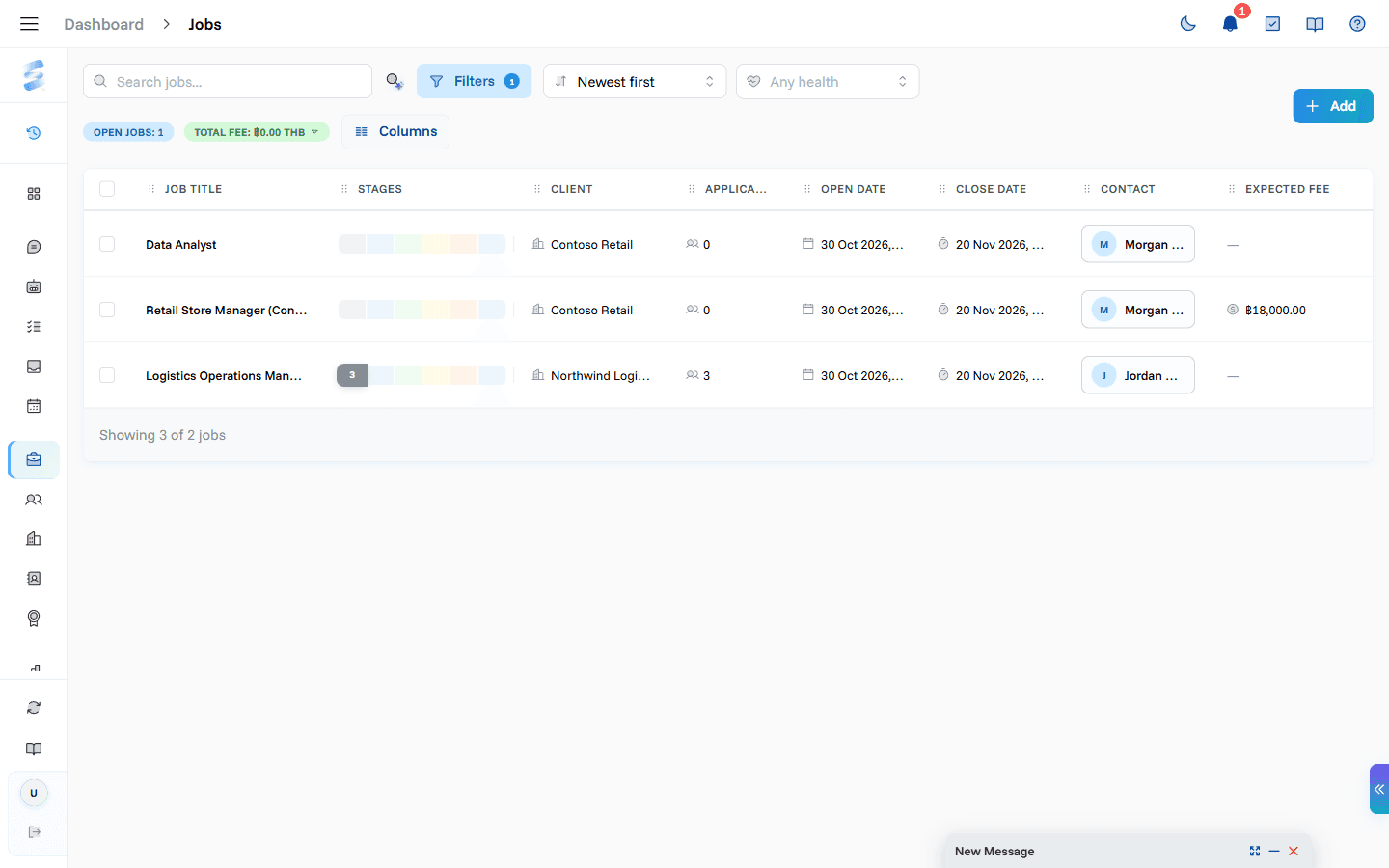
The Jobs page shows every job your workspace is working on, as a board or as a list, with its status, client and fee.
Open the job list#
- Click Jobs under Database in the main menu.
- Pick how to see your jobs with the view buttons next to Columns: Kanban board, List view or Group by client. Seekr remembers your choice.
The badges at the top show your Open Jobs count and the Total Fee. Click Total Fee to see the total in another currency.
Understand job statuses#
| Status | Meaning |
|---|---|
| Open | You are actively recruiting for the job. |
| On Hold | The job is paused, for example while the client decides. |
| Placed | The job has been filled. |
| Closed | The job is finished and no longer worked on. |
A job that someone is actively searching on also shows an orange card on the board, an Active badge in the list, and the searcher's avatar. See AI Matches and active search.
Filter by status#
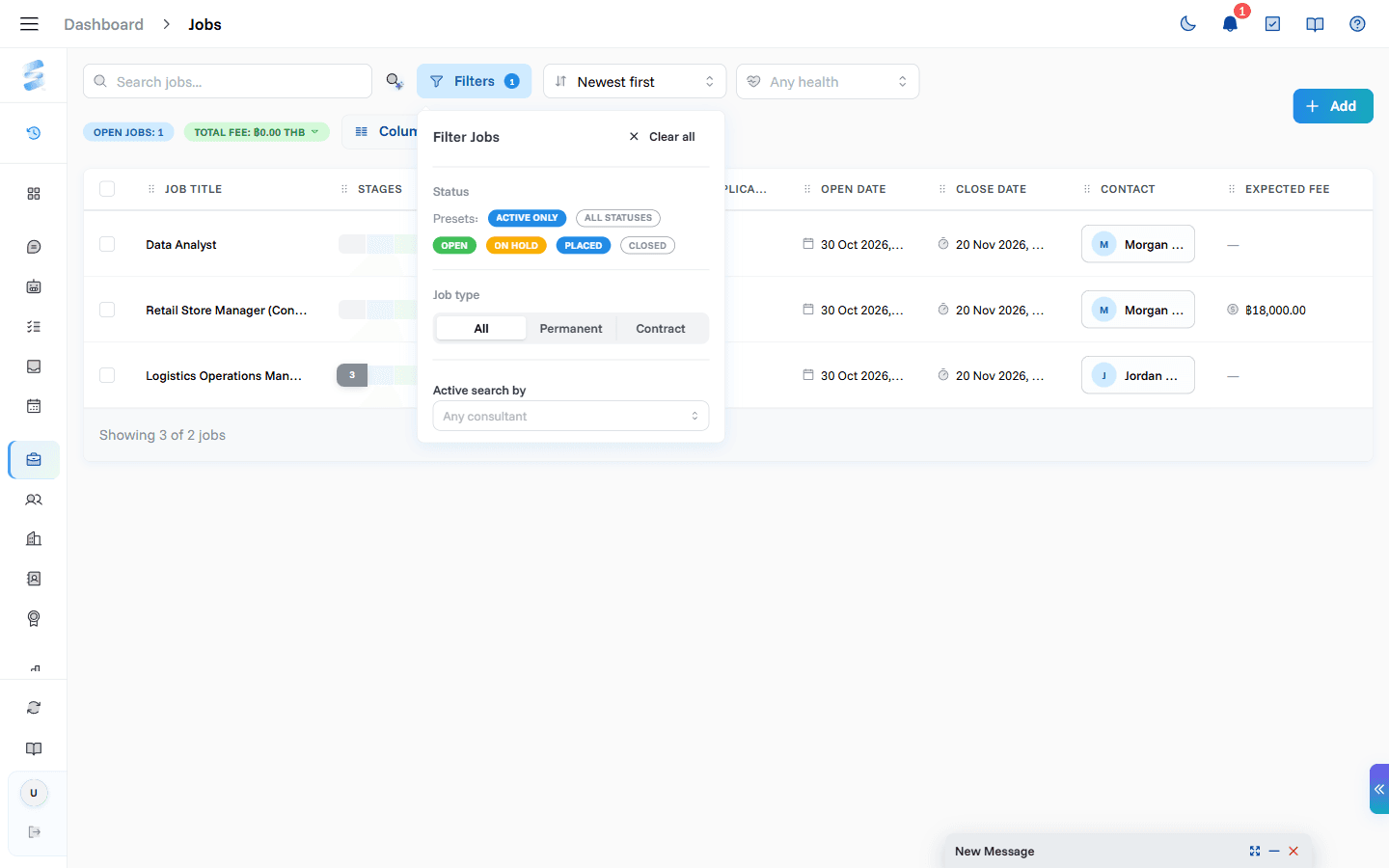
- Click Filters next to the search box.
- Under Status, choose the statuses to show. Two presets help:
- Active only shows Open, On Hold and Placed jobs, leaving out Closed ones.
- All statuses shows every job.
- Under Job type, pick All, Permanent or Contract. The board shows one job type at a time.
- Use Active search by to see only the jobs a chosen consultant is actively searching.
- Click Clear all to reset.
To find a job by name, type in Search jobs.... Switch on AI Smart Search with the AI icon to search by meaning, such as "senior finance roles in Singapore".
Change a job status#
For one job: click its status badge and pick the new status. You can also open the job and use Actions: Close Job, Put on Hold or Mark as Open.
For several jobs:
- Select the jobs (tick their rows, or select cards on the board). In the list, Select all … loaded next to the search box ticks every job shown so far, and Clear unticks them all.
- Open the status menu and choose Close jobs, Put on Hold, Mark as Open or Mark as Placed.
- Confirm.
Open a job#
Click a job card or row to open the job's page, where you work its pipeline. See Job detail and pipeline.