Billing and plans
Open in SeekrSee your plan, what it includes, your seats and how much of your monthly AI allowance you have used.
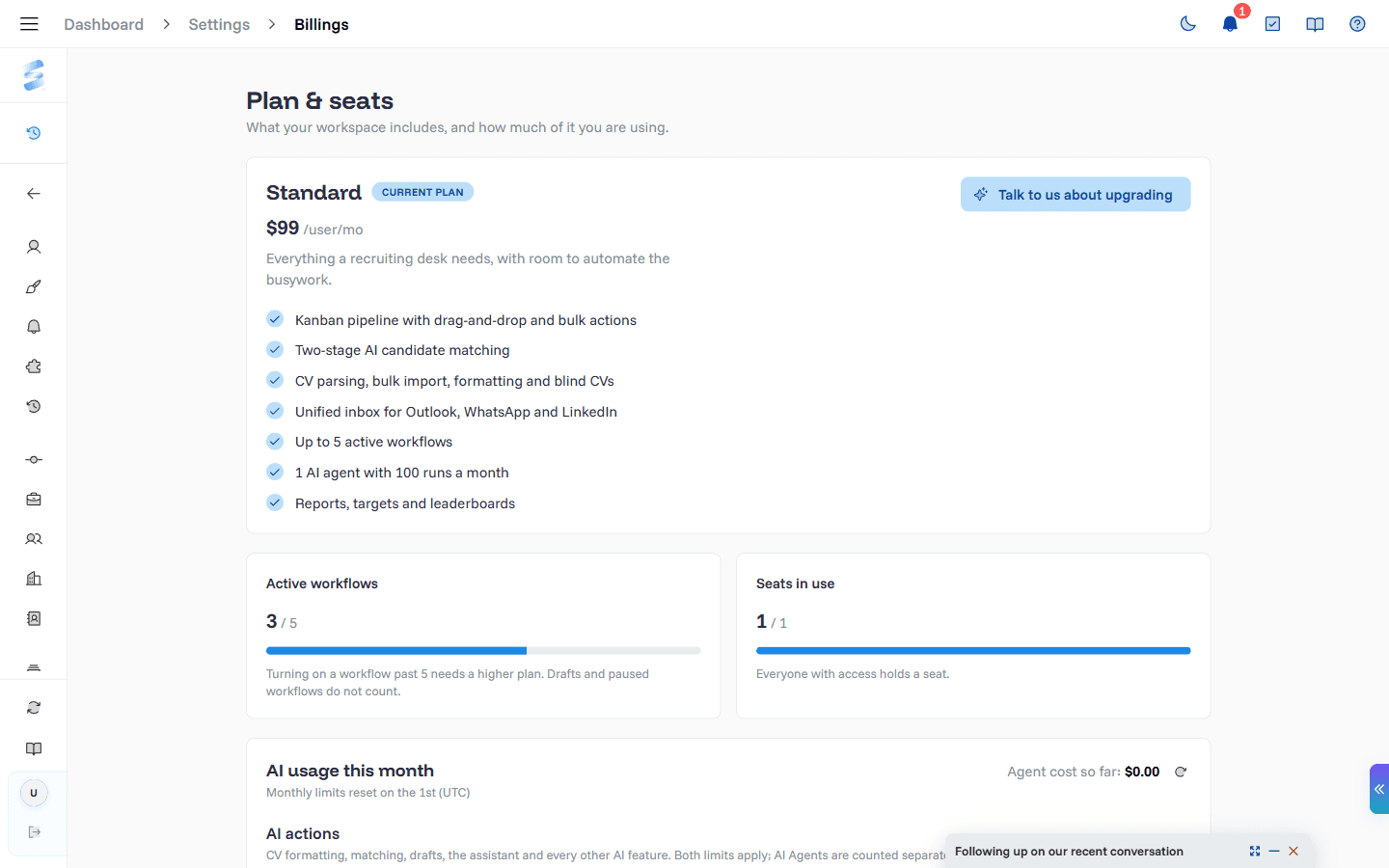
The Plan & seats page shows what your workspace includes and how much of it you are using.
Before you start#
Admins only. Billings sits under Admin in Settings, which only admins see.
Open Billing#
- Click Settings in the main menu.
- Under Admin, click Billings.
Read your plan#
The top card shows your plan's name with a Current plan badge, its monthly price and the lower price when billed annually, a short summary and the list of what it includes.
Below it you see your usage:
- Active workflows: how many workflows are switched on, out of your plan's limit. Drafts and paused workflows do not count.
- Seats in use: how many people hold a seat. People you invited who have not set a password yet already hold one.
- AI usage this month: how much of your monthly AI allowance is used, with AI Agents counted separately. Monthly limits reset on the 1st (UTC).
Compare plans#
| Plan | Price | Includes |
|---|---|---|
| Standard | $119 per user a month, or $99 per user a month billed annually | Kanban pipeline with drag-and-drop and bulk actions; two-stage AI candidate matching; CV parsing, bulk import, formatting and blind CVs; unified inbox for Outlook, WhatsApp and LinkedIn; up to 5 active workflows; 2 AI scouts, weekday runs, 100 runs a month; reports, targets and leaderboards. |
| Premium | $139 per user a month, or $119 per user a month billed annually | Everything in Standard, plus unlimited active workflows; 10 AI scouts, weekday runs, 600 runs a month; placements with fee splits; the conversational AI assistant; and priority support. |
| Enterprise | Contact us | Everything in Premium, plus onboarding and data migration support, custom agreements and security review, and a named point of contact. |
To change plan, click Talk to us about upgrading.
Update your seats#
- Find Seats you are paying for.
- Set Seats to the number you arranged with the Seekr team.
- Click Save.
This number is a record, not a limit. You can still invite more people.
Invite and remove people#
The same page lets you manage who has access:
- Invite someone sends an invitation. A seat is taken as soon as you invite.
- Waiting to set a password lists invitations not yet accepted.
- People with access lists everyone in the workspace. Removing someone frees their seat straight away.
See Organization, team and seats for the steps.
Update billing details#
Billing is arranged directly with the Seekr team, so there are no card or invoice details to change in the app. Contact the Seekr team for anything about payment.