Candidate detail
Open in SeekrTour the tabs on a candidate profile and keep it up to date.
A candidate's page brings together everything Seekr knows about one person: their details, CV, notes, tasks, job applications and documents.
Open a candidate#
- Open Candidates from the main menu.
- Click a row to open the quick view, then click View Full Details.
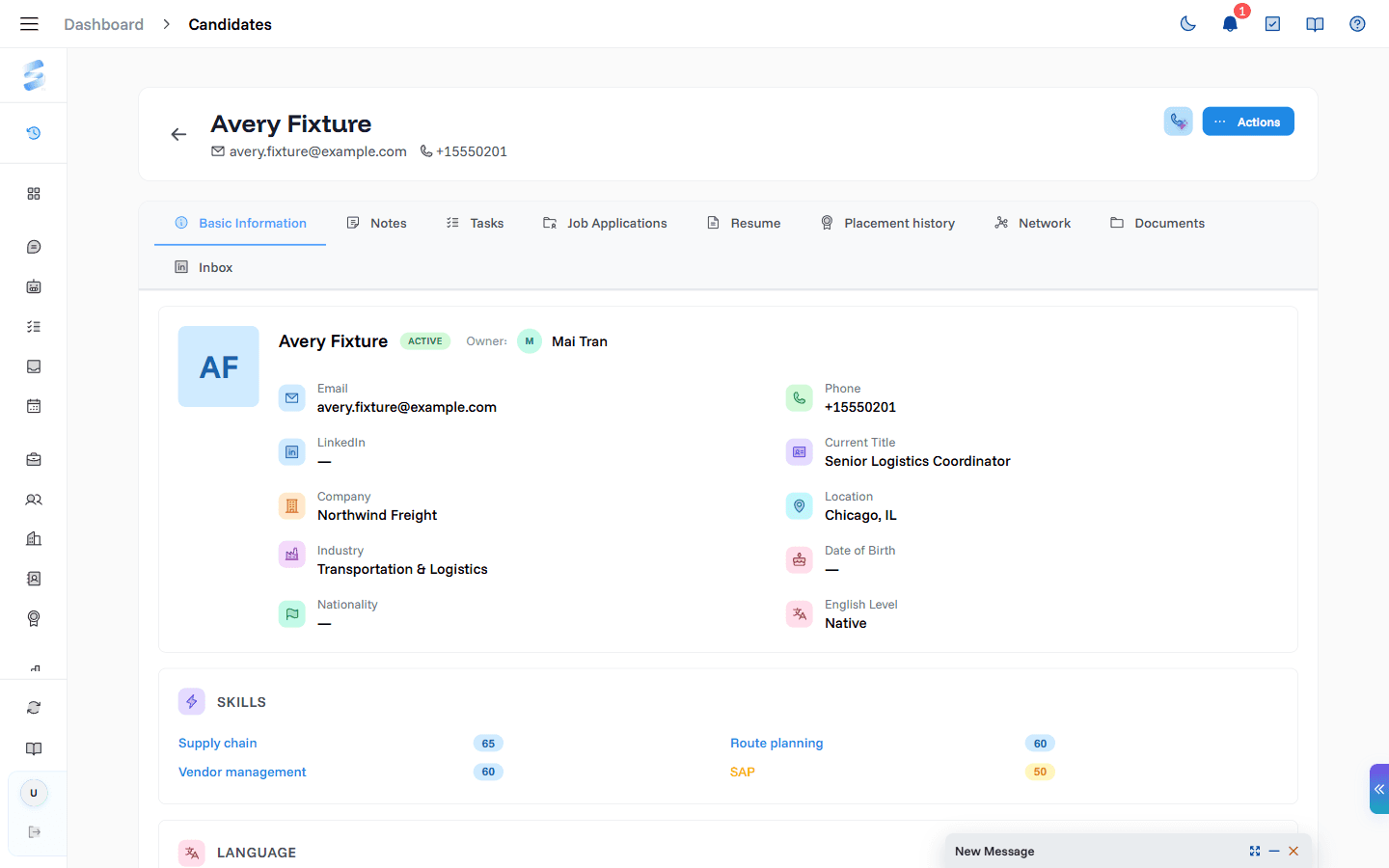
The top of the page shows the candidate's name and photo, their status and Owner, and an Actions menu for everything you can do with them.
Read the Basic Information tab#
The page opens on Basic Information. It shows:
- Contact details: Email, Phone and LinkedIn.
- Current role: Current Title, Company and Location.
- Personal details such as Date of Birth, Nationality, English Level, Current Salary and Currency.
- Skills and Language.
- CV Summary and Education, filled in from the candidate's CV.
- Configuration Details: when the candidate was created, by whom, and their Source.
- Activity Snapshot, including the Next Task due.
Move between tabs#
| Tab | What you find there |
|---|---|
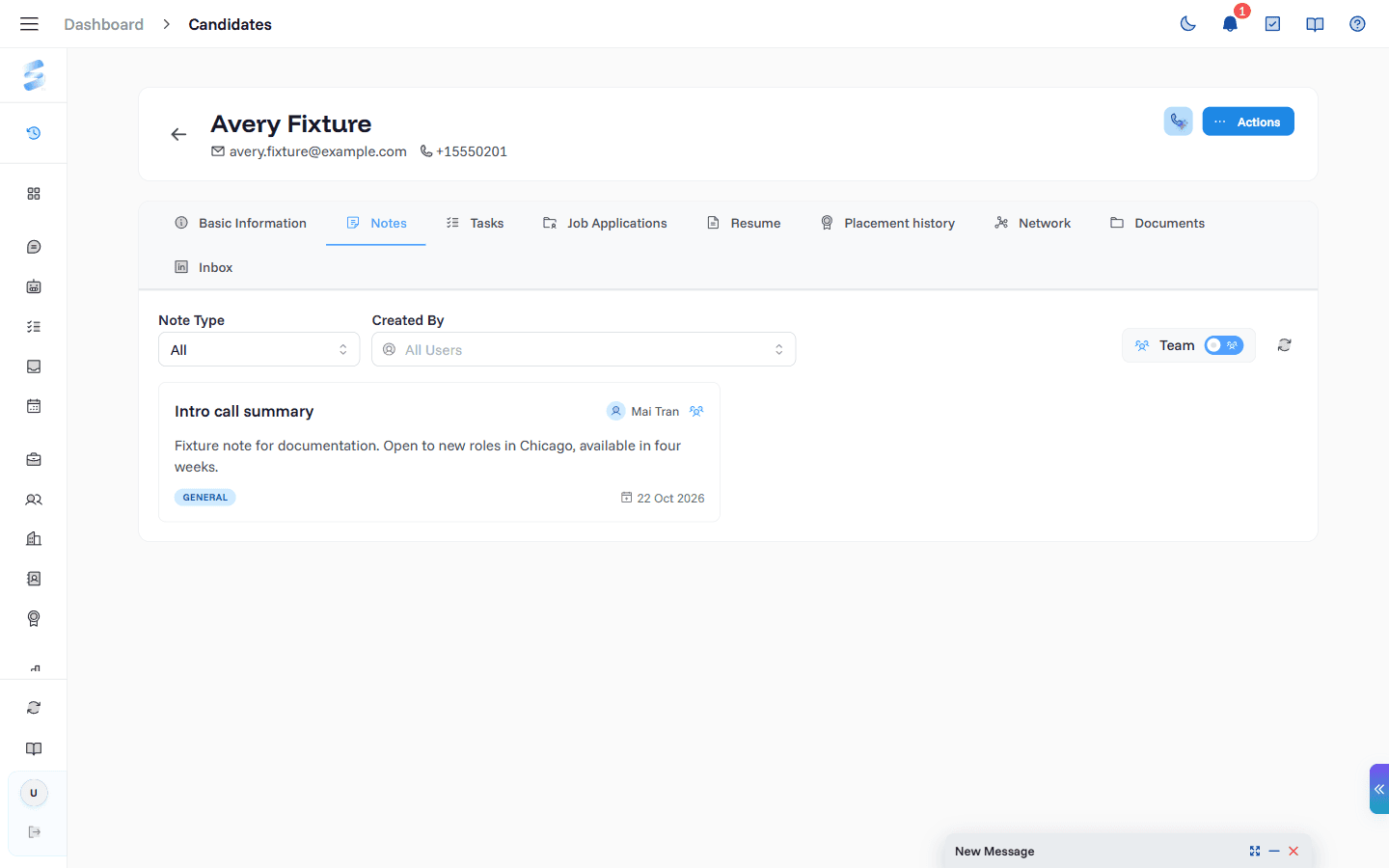
| Notes | Every note about the candidate. Filter by Note Type or Created By. |
| Tasks | Tasks linked to the candidate. Filter by Due Date, Assigned To or Status. |
| Job Applications | The jobs the candidate is in, laid out by stage. |
| Resume | The candidate brief, CV history, CV preview and saved agency CVs. |
| Placement history | Placements made with this candidate. |
| Network | The people, clients and jobs this candidate is connected to. |
| Documents | Agreements, Invoices and Time sheets for the candidate. |
| Inbox | Your LinkedIn conversation with the candidate. |
Edit candidate details#
- Stay on the Basic Information tab.
- Open Actions and click Edit Information.
- Change the fields you need.
- Click Save, or Cancel to throw the changes away.
The Actions menu also lets you:
- Upload photo or Remove photo.
- Claim Ownership of a candidate nobody owns, or Relinquish Ownership of one you own.
- Shortlist to Job, Send Email or Message on LinkedIn.
- Generate Agreement, once the candidate is in at least one job.
See notes, tasks and activity#
- Open Actions and click Take Note to write a note, or Create Task to add a follow-up.
- Select the Notes or Tasks tab to read what you and your team have logged.
Each note shows who wrote it and whether it is Private or Visible to team. Deleted notes and tasks can be brought back with Undo right after you delete them.