Navigating the dashboard
Open in SeekrFind your way around the menu, top bar, notifications, dark mode and seasonal themes.
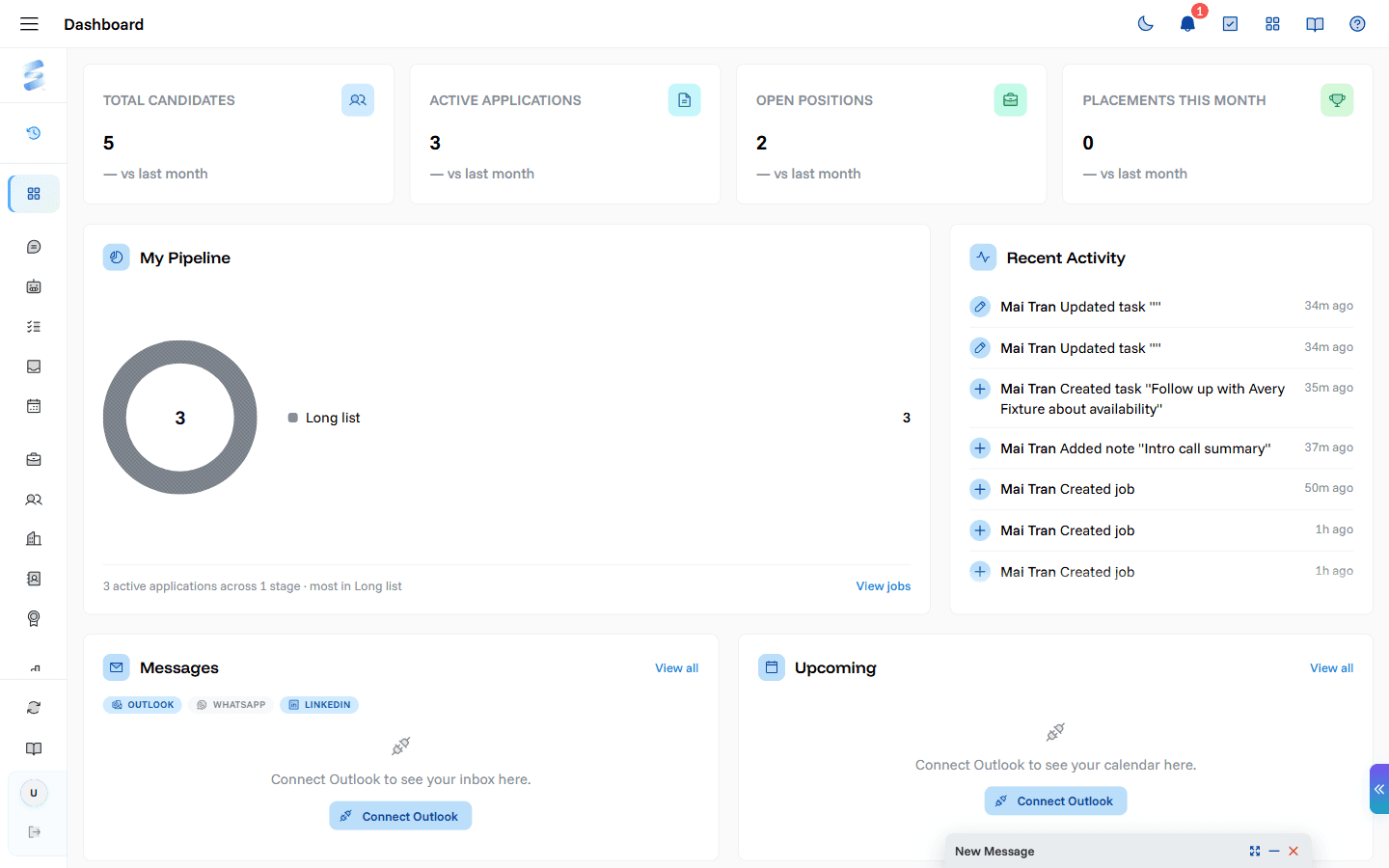
The dashboard is built from three parts: the menu on the left, the top bar, and your home screen of widgets.
Use the main navigation#
The menu on the left is grouped by the kind of work you do:
- Dashboard is your home screen.
- Productivity: AI Assistant, Agents, Tasks, Messaging and Calendar.
- Database: Jobs, Candidates, Clients, Contacts and Placements.
- Tools: Reports.
- Privileges: Workflows and Settings.
To move around:
- Click an item to open it.
- Click Settings to swap the menu for the settings menu. Click Back to Home to return to the main menu.
- Collapse the menu with the toggle in the top bar to get more room. The icons stay visible, and hovering over one shows its name.
Get back to recent pages#
- Look for Recent at the top of the menu.
- Open it to see the records and screens you visited last, such as a candidate or a job.
- Click one to jump straight back to it.
Each list (Candidates, Jobs, Clients, Contacts) has its own search box at the top. See Find candidates in the list for an example.
Use the top bar#
The icons on the right of the top bar are always there, whatever screen you are on:
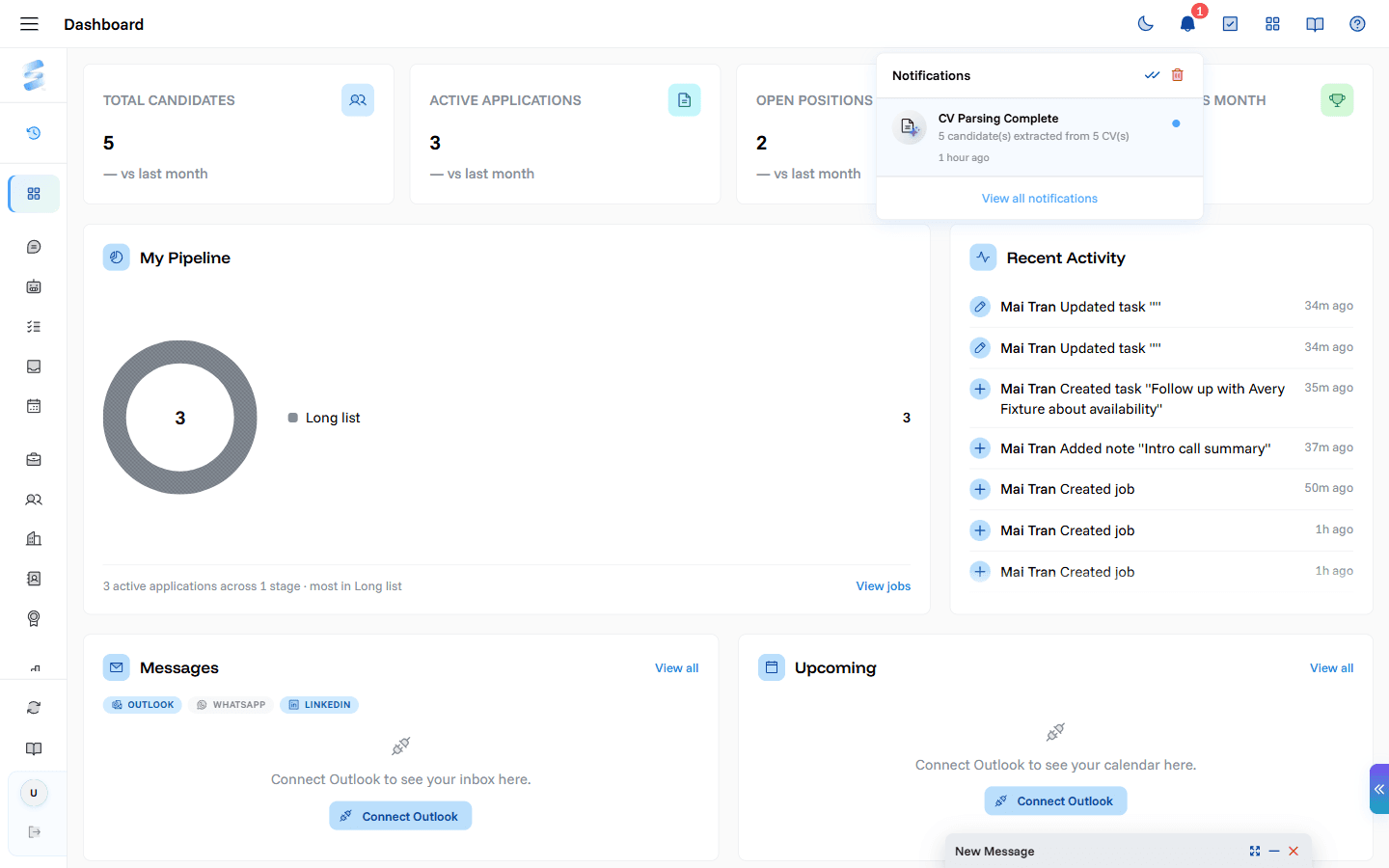
- Notifications (the bell) opens your notifications.
- My to-dos opens your personal to-do list.
- Help for this page (the book) opens the guide for the screen you are on in a new tab.
- Contact Support lets you reach the Seekr team.
On the home screen you also see Customize dashboard:
- Click Customize dashboard.
- Click Add widget to add a card such as My Tasks, My Open Jobs or World clock. Drag a widget by its handle to move it, or click Remove widget to take it away.
- Click Save layout to keep your changes, or Discard to go back to the last saved layout.
Check your notifications#
- Click the bell in the top bar. A number on the bell shows how many notifications you have not read.
- Click a notification to open it.
- Use Mark all as read, Clear all read or Clear all at the top of the panel to tidy the list.
New notifications also pop up briefly next to the bell, so you see them even when the panel is closed.
Switch between light and dark mode#
- Quick switch: click the sun or moon icon in the top bar (Switch to Dark Mode or Switch to Light Mode).
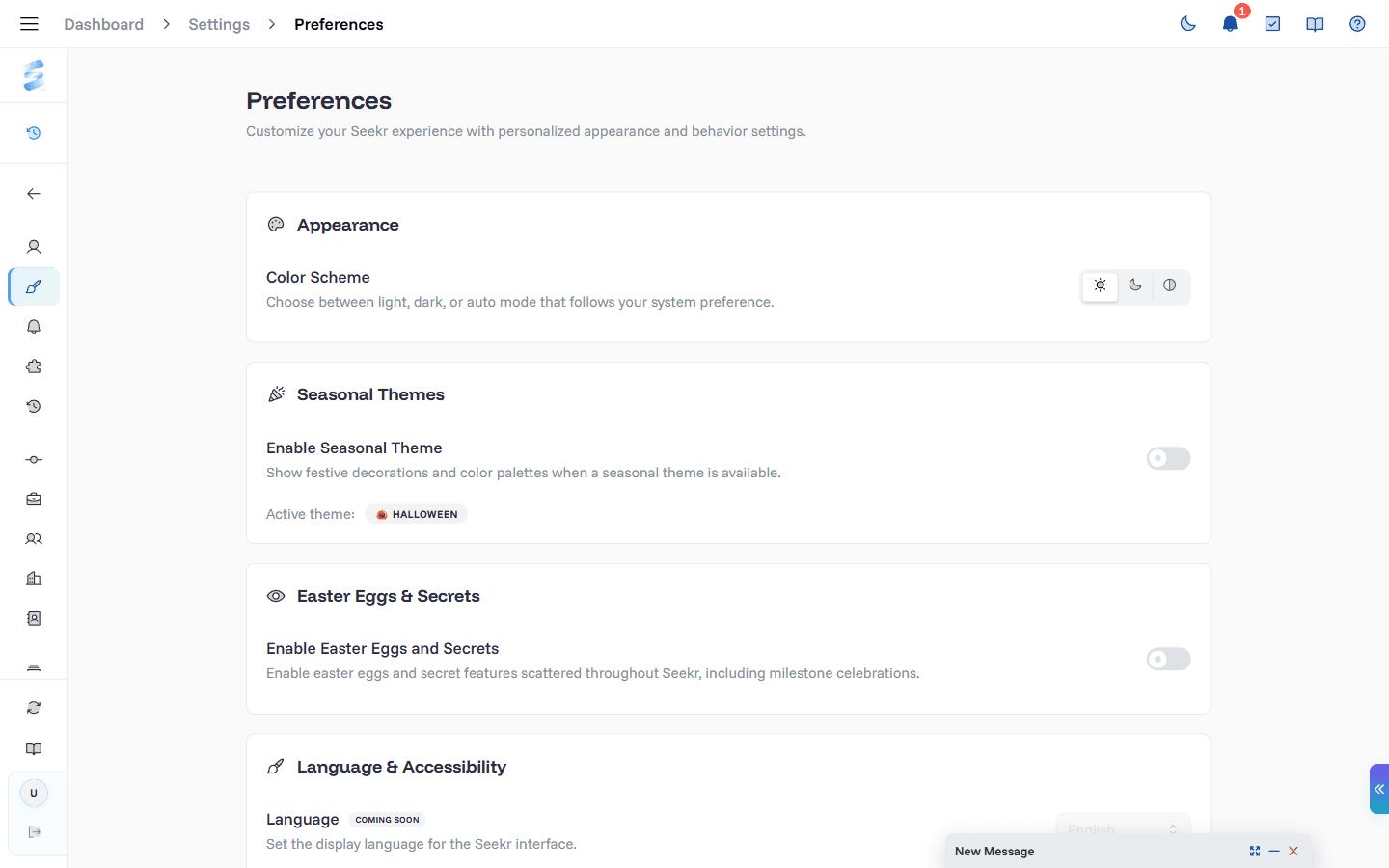
- Follow your computer: open Settings → Preferences, then under Appearance set Color Scheme to Light, Dark or Auto. Auto follows your system setting.
Turn the seasonal theme on or off#
At certain times of year Seekr offers a festive theme with its own decorations and colours.
- Open Settings → Preferences.
- Under Seasonal Themes, switch Enable Seasonal Theme on or off.