Connect Outlook and shared mailboxes
Connect your Outlook mailbox to Seekr, and see mail from your team's shared mailboxes.
Connect your Microsoft Outlook account to send and receive email inside Seekr and to see your Outlook calendar next to your tasks.
Connect your Outlook account#
- Click Messaging in the left menu and open the Outlook tab.
- Under Connect your Outlook account, click Connect Outlook.
- Sign in with your Microsoft account and accept the permissions Microsoft asks for.
- You return to Seekr and your mail starts to load. A bar shows Syncing emails... until the first load is done.
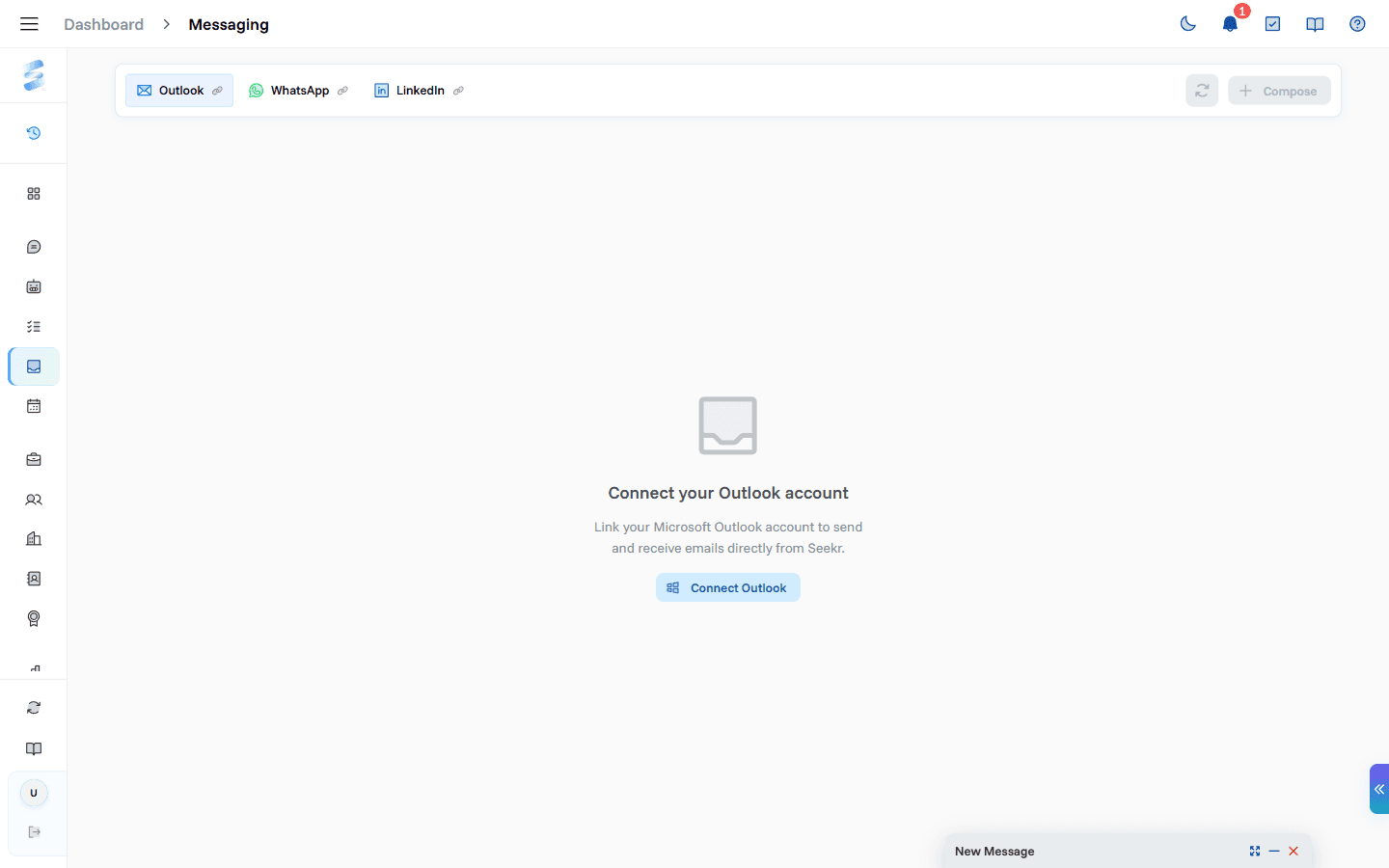
If the sign-in fails, the button changes to Retry Connection. You can also connect from the Calendar page or from the inbox card on your dashboard home screen; it is the same connection.
Add a shared mailbox#
A shared mailbox (for example a team jobs address) is connected once for the whole workspace. Admins only.
- An admin connects the organization mailbox while setting up an automation that starts from incoming email. See Workflows.
- Once connected, mail from that mailbox appears on each contact's Inbox tab, next to each person's own email with that contact.
Reply to shared mailbox mail#
Shared mailbox conversations are read-only in Seekr. They are marked Shared mailbox — read-only. To answer one, reply from the shared mailbox in Outlook.
When you write a new email or reply in Messaging, it is always sent from your own connected Outlook account.
Disconnect an account#
- Open Messaging and the Outlook tab.
- Click Disconnect (Disconnect Outlook account).
- Read the warning and click Disconnect to confirm.