Workspace layout
Choose the default columns everyone sees on the Candidates, Jobs, Clients and Contacts lists.
Workspace layout sets the starting columns for each list in Seekr. Everyone in the workspace gets these defaults, and each person can still change the columns on their own view.
Before you start#
Admins only. The Workspace Layout group in Settings is hidden from other roles.
Open the settings for a list#
- Click Settings in the main menu.
- Under Workspace Layout, click Candidates, Jobs, Clients or Contacts.
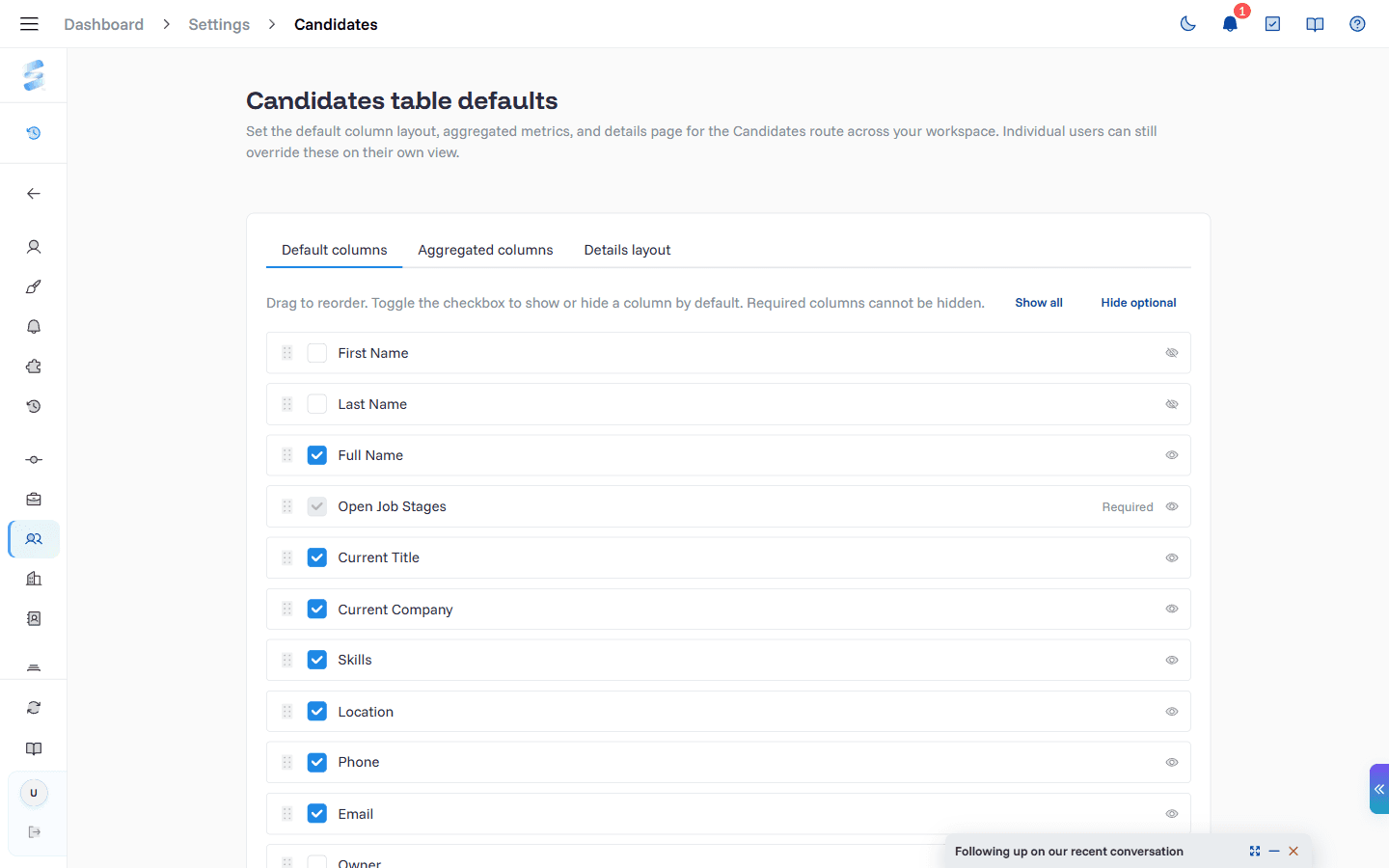
Each page is called after its list, for example Candidates table defaults, and has three tabs:
- Default columns: the columns, and their order, that everyone starts with.
- Aggregated columns: marked Coming soon.
- Details layout: marked Coming soon.
Set the default columns#
- Stay on the Default columns tab.
- Tick a column to show it by default, or untick it to hide it. An eye icon shows whether each column is visible.
- Drag a column by its handle to change where it sits.
- Click Save defaults.
Columns marked Required are always shown and cannot be hidden.
The same steps work on the Jobs, Clients and Contacts pages.
Start again#
- Click Show all to tick every column.
- Click Hide optional to untick everything except the required columns.
- Click Cancel to go back to the last saved defaults.