Unified inbox overview
Open in SeekrRead and reply to your email, WhatsApp and LinkedIn conversations from one screen.
Messaging brings your Outlook email, WhatsApp chats and LinkedIn messages into one screen, so you can reply to candidates and clients without leaving Seekr.
Open the inbox#
- Click Messaging in the left menu.
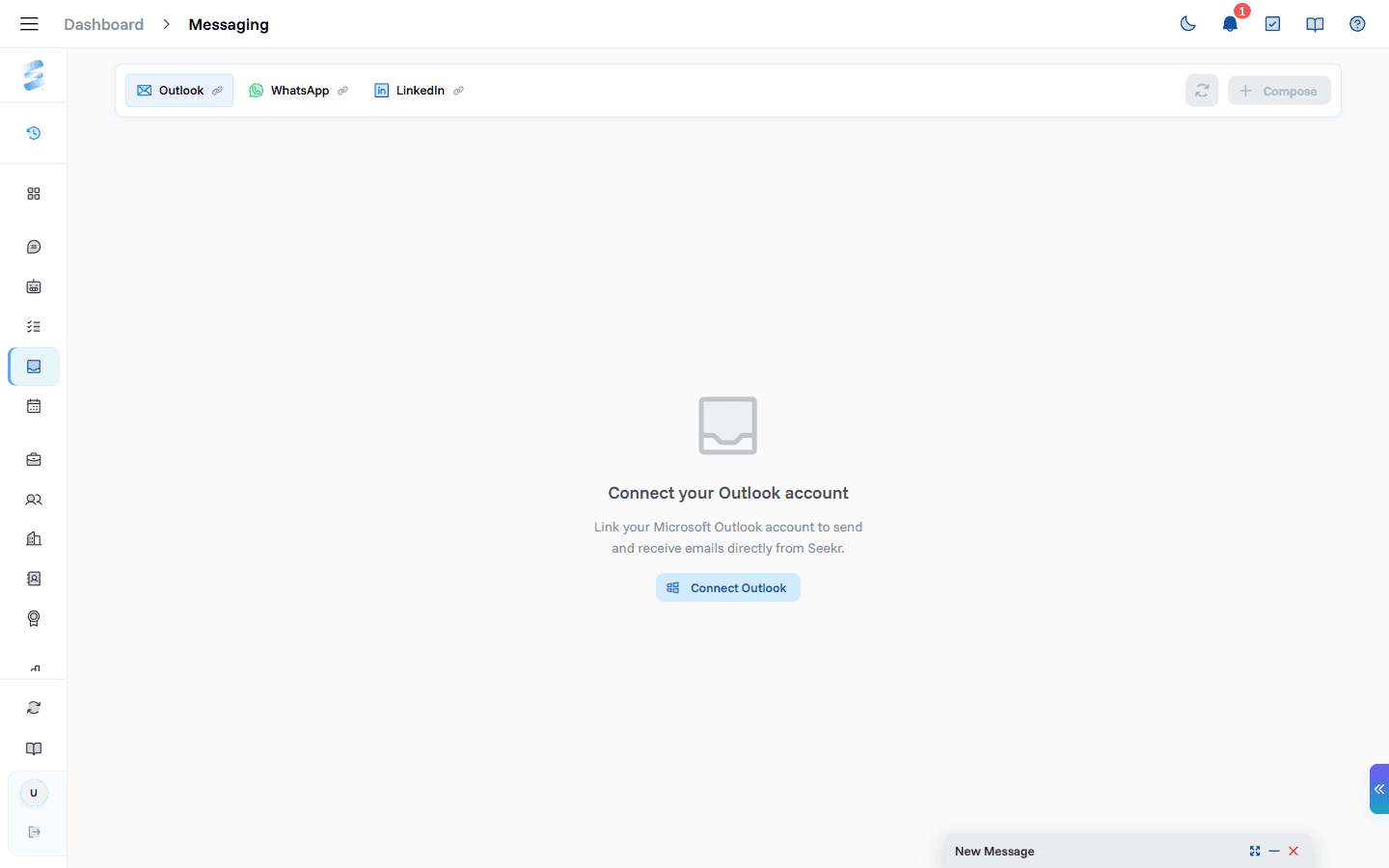
- If you have not connected an account yet, you see Connect your Outlook account. Click Connect Outlook and sign in with Microsoft. See Connect Outlook and shared mailboxes.
- Once connected, your mail appears in the list on the left, grouped by date.
Switch between channels#
- Use the tabs at the top: Outlook, WhatsApp and LinkedIn. A number on a tab shows how many unread messages it has.
- Hover over a tab to see its state, for example Connected or Click to connect.
- In the Outlook tab, choose a folder: Inbox, Sent, Drafts or Deleted.
- Type in Search messages... to find an email.
Read a thread#
- Click a conversation in the list. It opens on the right with the subject and sender at the top.
- Older messages in a long thread are folded. Click Show other messages or Load earlier messages to see them, and Hide quoted text to shorten long replies.
- Click an attachment to preview it.
- Use Reply, Reply All or Forward at the bottom to answer.
Star and mark as read#
- A message is marked as read as soon as you open it.
- Click the star (Add star) in the thread header to flag a conversation you want to come back to. Click it again (Remove star) to clear it.
- Click Delete in the thread header to delete a conversation. Seekr asks you to confirm first.