Job detail and pipeline
Open in SeekrWork a job from its pipeline board, from adding candidates to scheduling interviews.
A job's page opens on its Pipeline: a board with one column per hiring stage, where every candidate in the job is a card you can move along.
Open a job#
- Click Jobs in the main menu.
- Click a job card or row.
Read the job header#
The header shows the job title, its status badge, and, when they apply, an Active search badge with the CV goal and days left, and a Confidential badge.
The Actions menu holds everything you can do with the job:
- Take Note and, on the Basic Info tab, Edit Job.
- Start active search or End active search.
- Close Job, Put on Hold or Mark as Open.
- Mark Confidential or Mark as Public.
- Reassign Contact to move the job to another contact at the client.
- On contract jobs, Extend contract and Finish contract.
Below the header are the tabs: Pipeline, Basic Info, Notes, Adverts, AI Matches, Connected, Activities, Documents and Placements.
Add a candidate to the pipeline#
- On the Pipeline tab, click Add Candidate in the toolbar.
- Search for a candidate by name and click Search, or look through the AI Sourcing suggestions of candidates who fit the job.
- Add the candidates you want. They land in the first stage.
You can also add candidates from the candidate list (Add to Job), from a candidate's page (Shortlist to Job), or from the AI Matches tab.
Search, sort and filter the board#
A toolbar above the board works on every stage at once.
- Type in Search candidates... to find cards by name, current title, current company, email or phone number.
- Use the sort menu to order the cards by Match score, Newest applied, Oldest applied or Name (A to Z). Match score keeps starred candidates at the top of each column; the other sorts do not.
- Click Filters to narrow the board. Turn on Starred only or Profile form submitted, or enter a Minimum match score (candidates with no score are hidden while it is set). A number on the button shows how many filters are on; click Clear all to remove them.
A stage header shows how many cards are visible out of the total while a search or filter is on. Select all … loaded and the bulk actions only act on the cards you can see, and you can still drag cards between stages.
Seekr remembers your sort and filters, for every job. The search text is not remembered.
Move candidates on the kanban#
- Drag a candidate card into the column of the next stage. To move several at once, select their cards first and drag one of them.
- If the stage has emails set up, a ready-to-send email opens for you to check and send.
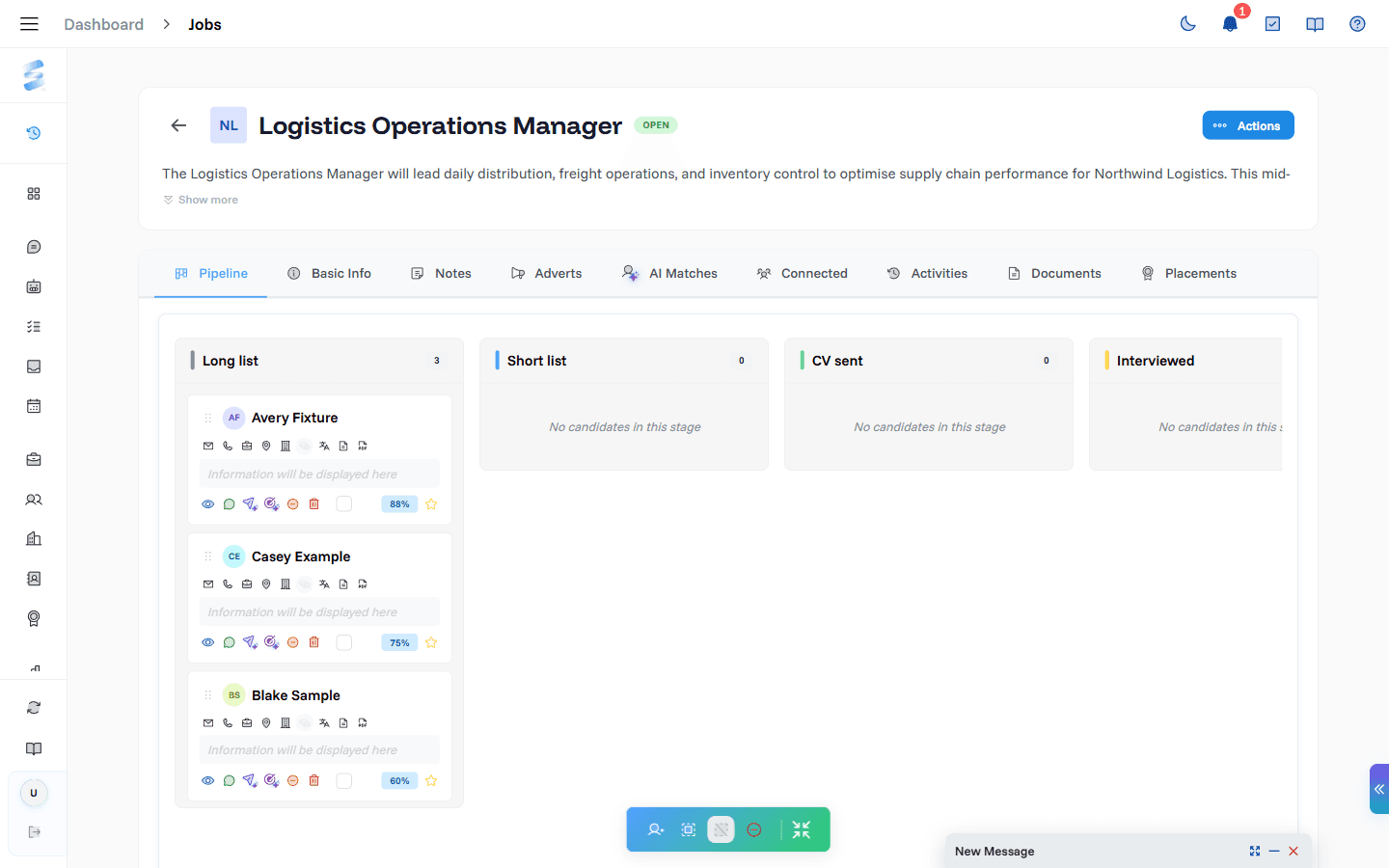
Each card shows the candidate's details and AI match score. Click the card to view their CV, or use its icons to View Profile, Message Candidate, Send CV to Contact or Re-run AI match score.
Interviews#
When a card sits in an interview stage, it offers Schedule interview. Once booked, the card lets you Reschedule, Cancel interview, Mark completed, Mark rejected or Update outcome. Moving a candidate out of the interview stage while an interview is still booked asks whether to cancel it.
Reject, restore and remove#
- Reject Application moves a card to the rejected group. Click Show rejected zone in the toolbar to see rejected candidates, and Restore Application to bring one back.
- Remove Candidate from Job takes the candidate out of the job. Click it twice to confirm.
With several cards selected, the toolbar offers Reject selected, Restore selected, Email selected, Send CV to Contact, Confirm Interview and Remove selected from job. Click Reset board view to go back to the default layout.